
Widgets, Control Center & Live Activity
Home screen widgets, lock screen widgets, Control Center control, and Live Activity during recording.
VivaDicta offers multiple ways to start recording without opening the app — home screen widgets, lock screen widgets, Control Center controls, and Live Activity for tracking recordings in progress.
Home Screen Widgets
Add a VivaDicta widget to your home screen for one-tap recording. The small widget provides a compact record button.
Adding a Home Screen Widget
- Long-press on your home screen until the icons jiggle.
- Tap the + button in the top-left corner.
- Search for VivaDicta.
- Select the small widget (record button).
- Tap Add Widget and position it on your home screen.
Tapping the widget opens VivaDicta and starts recording immediately — no extra taps needed.
Lock Screen Widgets
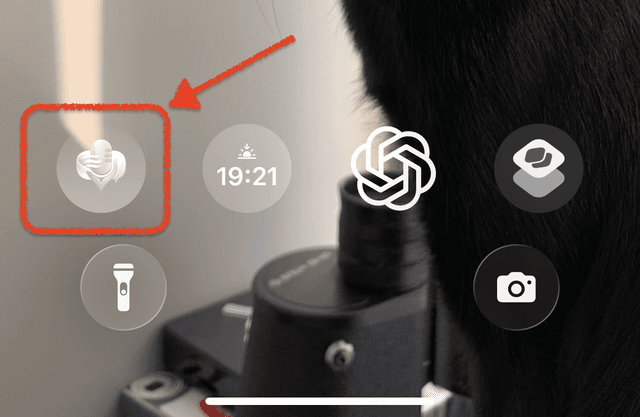
Place a VivaDicta widget directly on your lock screen for the fastest possible access. You can start a recording without unlocking your phone.
Adding a Lock Screen Widget
- Long-press on your lock screen.
- Tap Customize and select your lock screen.
- Tap the widget area below the clock.
- Find VivaDicta and add the widget.
- Tap Done.
The lock screen widget is especially useful for quick capture moments — an idea strikes, you tap the widget and start talking.
Control Center
VivaDicta provides a custom Control Center control. Add it once, then swipe down from the top-right corner of your screen in any app to start recording.
Adding the Control Center Control
- Open Control Center by swiping down from the top-right corner.
- Long-press anywhere in an empty space outside of the existing controls.
- An Add Control button will appear — tap it.
- Use the search bar to find VivaDicta.
- Tap the VivaDicta control to add it to Control Center.
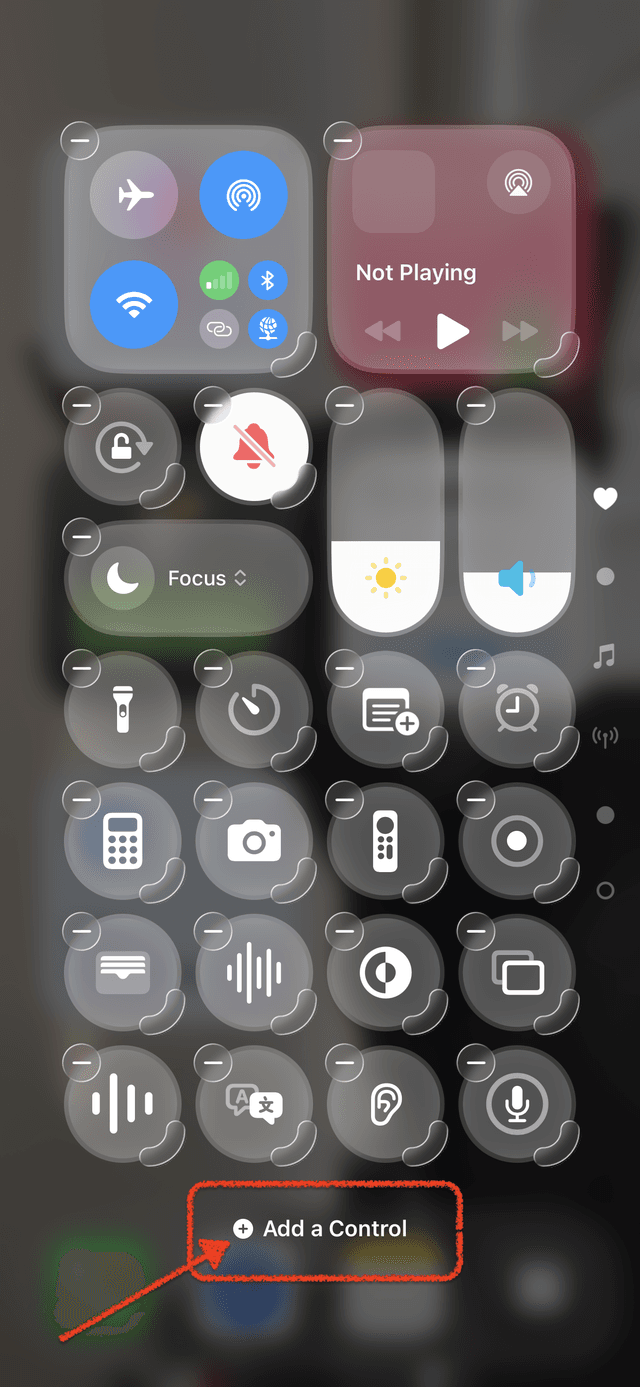
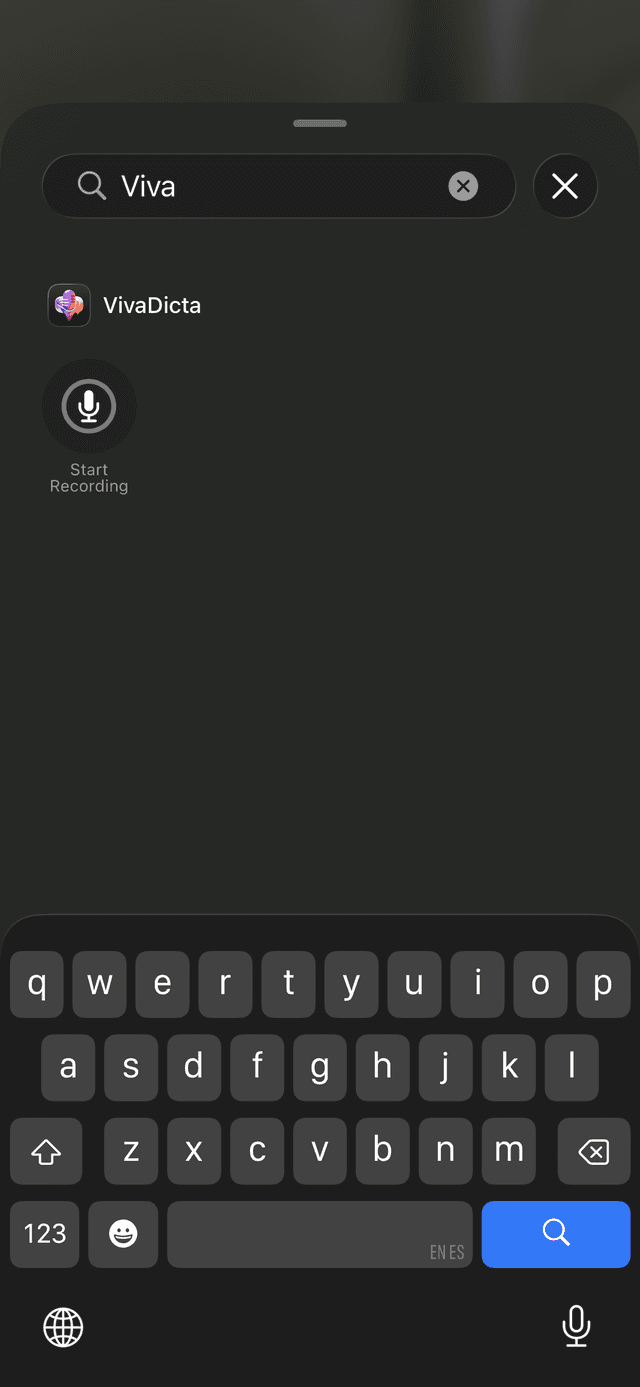
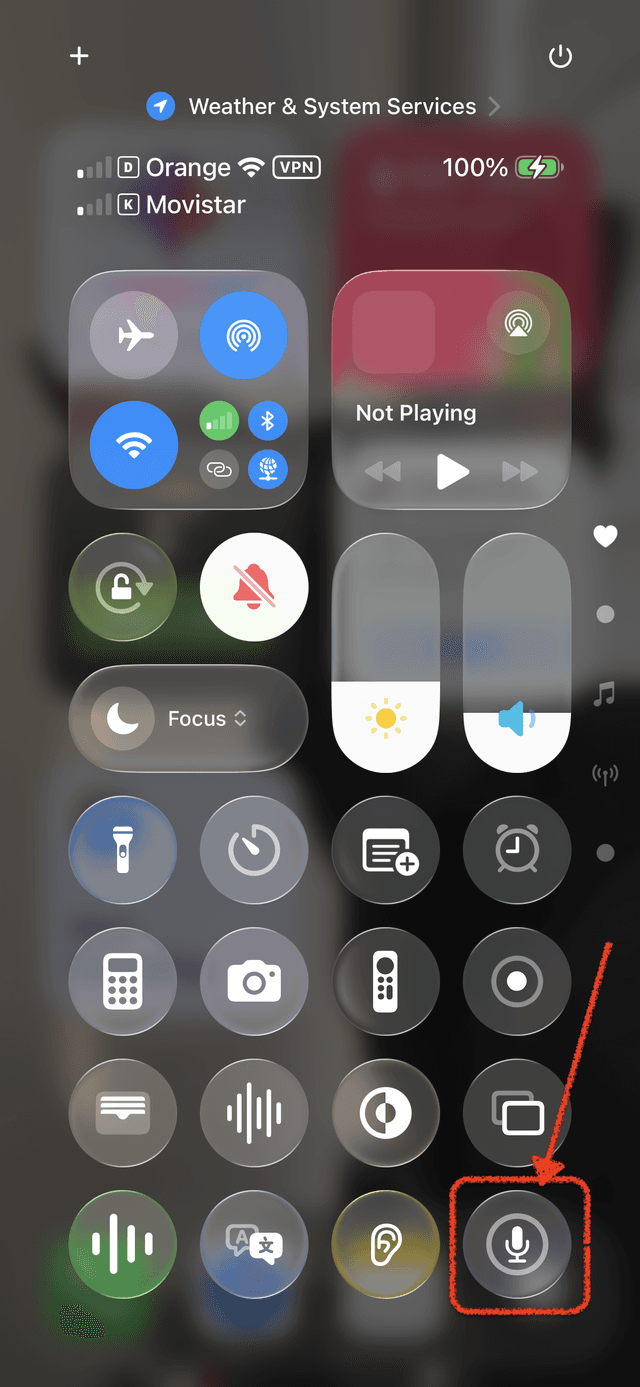
Now swipe to open Control Center from anywhere — even while using another app — and tap the VivaDicta control to start recording. This is particularly handy during phone calls, meetings, or while browsing the web.
Live Activity & Dynamic Island
While recording, VivaDicta shows a Live Activity on both the Dynamic Island (iPhone 14 Pro and later) and the lock screen. You can see:
- Recording duration in real time.
- A visual indicator that recording is active.
- Quick access to return to VivaDicta from any app.
The Dynamic Island shows a compact indicator when you're in another app. Tap it to return to VivaDicta's recording screen. On the lock screen, the Live Activity appears as a banner showing the recording timer.
Quick Actions
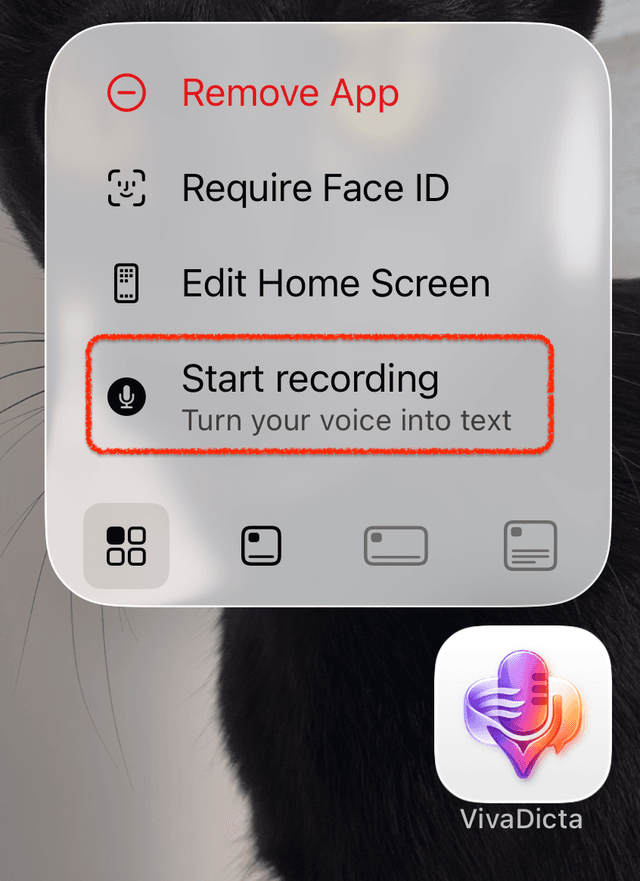
Long-press the VivaDicta app icon on your home screen to access quick actions. Tap Start recording to launch the app and begin recording immediately.
StandBy Mode
When your iPhone is in StandBy mode (charging in landscape), VivaDicta widgets are accessible on the widget screen. Tap to launch VivaDicta and start recording — useful for bedside or desk setups.
Summary: Ways to Start Recording
Between all the options, you have many ways to start recording beyond opening the app directly:
- Home screen widget — one tap from home screen.
- Lock screen widget — one tap without unlocking.
- Control Center — swipe down from any app.
- Quick Actions — long-press the app icon.
- Action Button — one press on iPhone 15 Pro+.
- Back Tap — tap the back of your phone.
- Siri — "Record in VivaDicta" (see Shortcuts & Siri).
- Custom keyboard — record directly in any text field.
- Live Activity — tap Dynamic Island to return to an active recording.