
Viva Modes
Auto-configure transcription and AI settings per context.
Viva Modes let you auto-configure transcription and AI settings for different contexts. Instead of manually switching providers, models, and presets each time, you save everything into a mode and switch with one tap.
What a Mode Stores
Each mode saves a complete set of configuration:
- Transcription — provider, model, and language.
- AI Processing — provider, model, and preset.
- Enabled state — whether AI processing is active for this mode.
Creating Modes
Create modes for different use cases. For example:
- Email — cloud transcription with the Professional preset for ready-to-send emails.
- Notes — fast local transcription with the Summary preset.
- Translate — any transcription model with a translation preset for quick multilingual output.
- Coding — a coding-optimized preset for dictating technical content and code-related notes.
- Chat — the Chat preset for casual, conversational tone.
- Assistant — the AI Assistant preset for asking questions and getting AI-generated answers.
Switching Modes
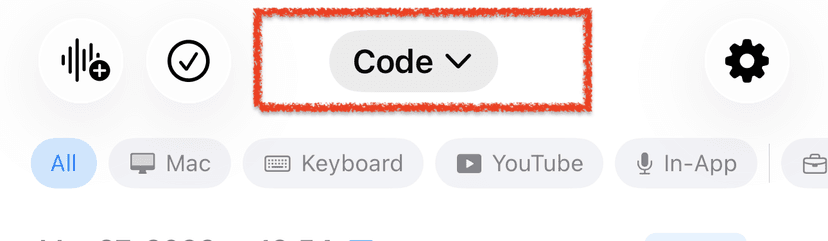
- Main screen — use the mode picker at the top of the main screen to switch between modes.
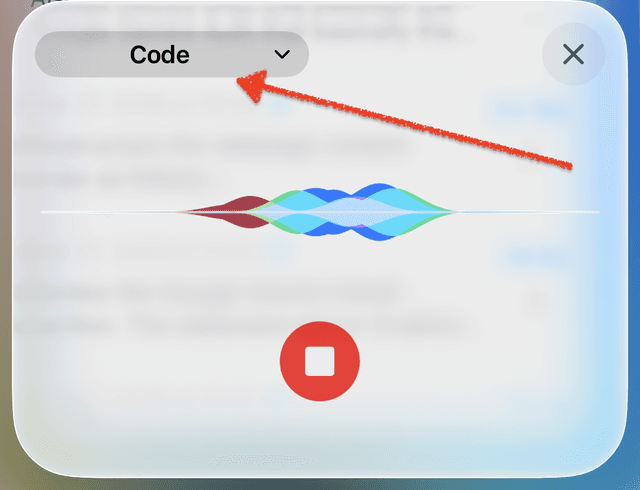
- Recording view — select a mode directly in the recording bottom sheet before or during recording.
- Keyboard — swipe on the Viva Mode switcher
 to switch between modes directly in the VivaDicta keyboard.
Editing a Mode
Open the Edit Mode screen to configure all settings for that mode — transcription provider and model, language, AI provider and model, and which preset to use. Tap the Save button to save. All modes can be edited or deleted.
Related
- Keyboard — use modes in the keyboard extension.
- AI Processing — configure AI providers and models.