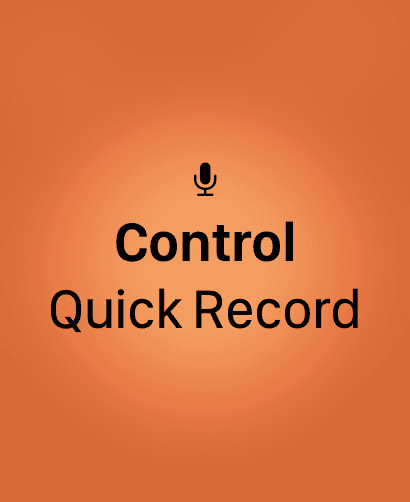
Watch Action Button
Configure the Action Button on Apple Watch Ultra for one-press recording.
On Apple Watch Ultra and Apple Watch with Action Button, you can assign VivaDicta's Quick Record control to the Action Button for instant recording from your wrist. Press once to start, press again to stop - no need to look at the screen.
Requires watchOS 26 or later. The Action Button hardware is available on earlier watchOS versions, but assigning controls to it requires watchOS 26.
Setting Up the Action Button
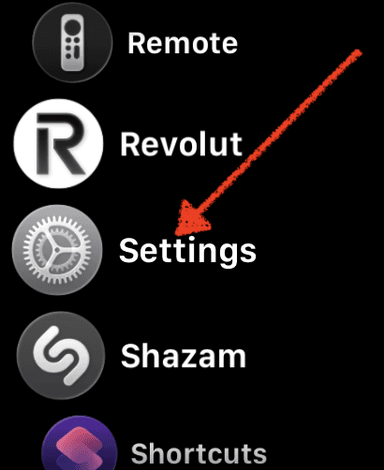
- Open Settings on your Apple Watch.
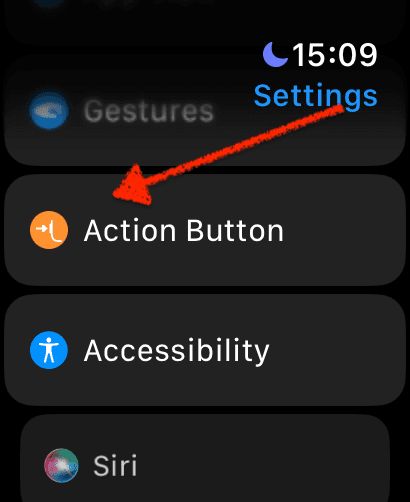
- Tap Action Button.
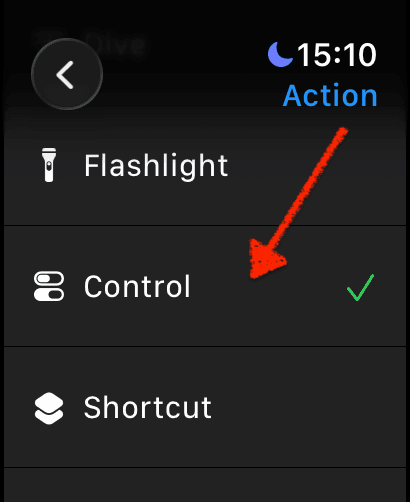
- Under Action, select Control.
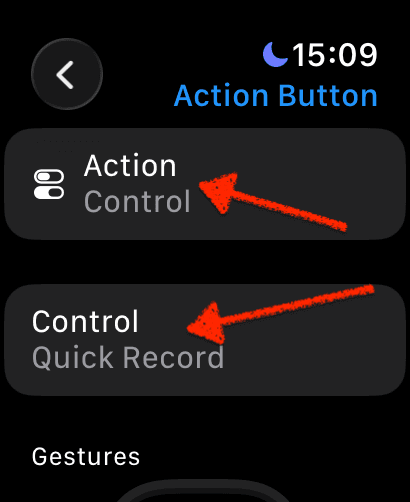
- Under Control, tap to select VivaDicta - Quick Record.
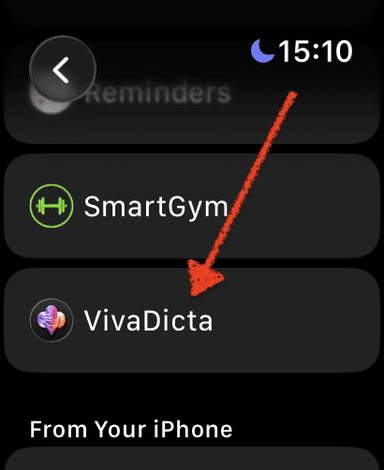
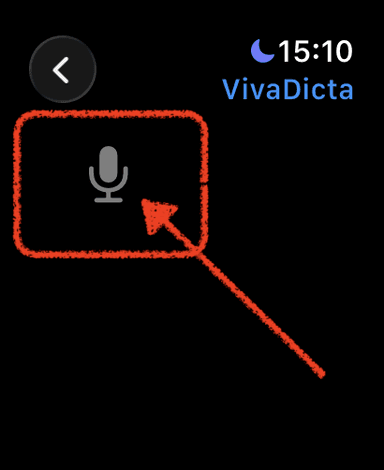
Your Action Button is now configured. The settings screen should show Action: Control and Control: Quick Record.
Using the Action Button
Press the Action Button once to start recording. VivaDicta opens and immediately begins capturing audio. Press it again to stop recording. The audio is uploaded to your iPhone for transcription and AI processing.
This is the fastest way to start a recording on your Apple Watch - no need to navigate any screens or even look at the display.