
History & Search
Browse, search, filter, and manage your transcription history.
Transcription List
The main screen shows all your transcriptions sorted by date, newest first. Each row displays a preview of the text, the timestamp, a source tag (microphone, import, keyboard, etc.).
Search
The search bar at the top searches across original transcription text, AI-processed text, and all variation text. Results update as you type.
Filter by Tags
A horizontal chip bar at the top of the list lets you filter transcriptions by source and custom tags. Tap a chip to show only transcriptions with that tag.
Selection Mode
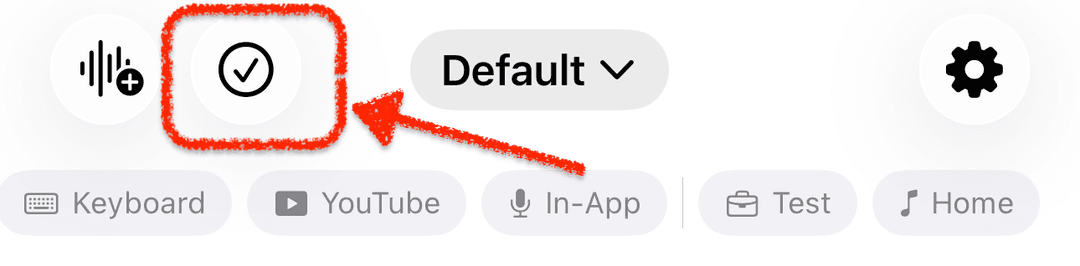
Tap Select to enter multi-select mode. The Select All action respects your current filters — it selects only the transcriptions currently visible.
Bulk Actions
- Delete — remove selected transcriptions permanently.
- Assign Tags — add or remove tags from all selected transcriptions at once.
Detail View
Tap any transcription to open the detail view. From here you can see the full text, browse all AI-processed variations, play back the audio, copy text to the clipboard, share, and assign tags.
Quick Copy
Copy buttons on each transcription row let you quickly copy text without opening the detail view. You can also enable auto-copy in settings to automatically copy each transcription to the clipboard right after recording.
Spotlight Integration
All transcriptions are indexed by iOS Spotlight. You can find your transcriptions by searching from the home screen — no need to open VivaDicta first.