
Action Button
Assign VivaDicta to the Action Button on iPhone 15 Pro and later for one-press recording.
On iPhone 15 Pro, iPhone 16, and later, you can assign VivaDicta to the Action Button for instant one-press recording — no unlock, no app switching, no taps on screen. There are two ways to set this up, and both do the same thing: press the button, start recording.
Option 1: Controls (Recommended)
The simplest way. VivaDicta provides a custom control that you can assign directly to the Action Button.
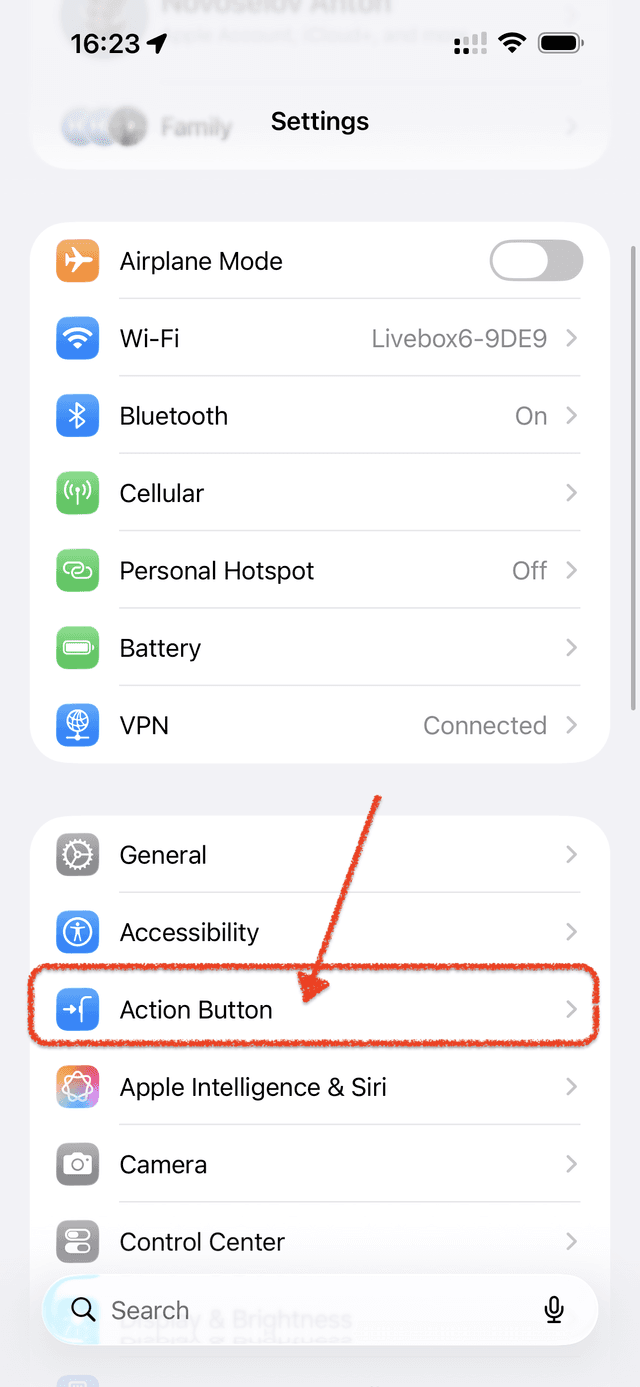
- Go to Settings > Action Button.
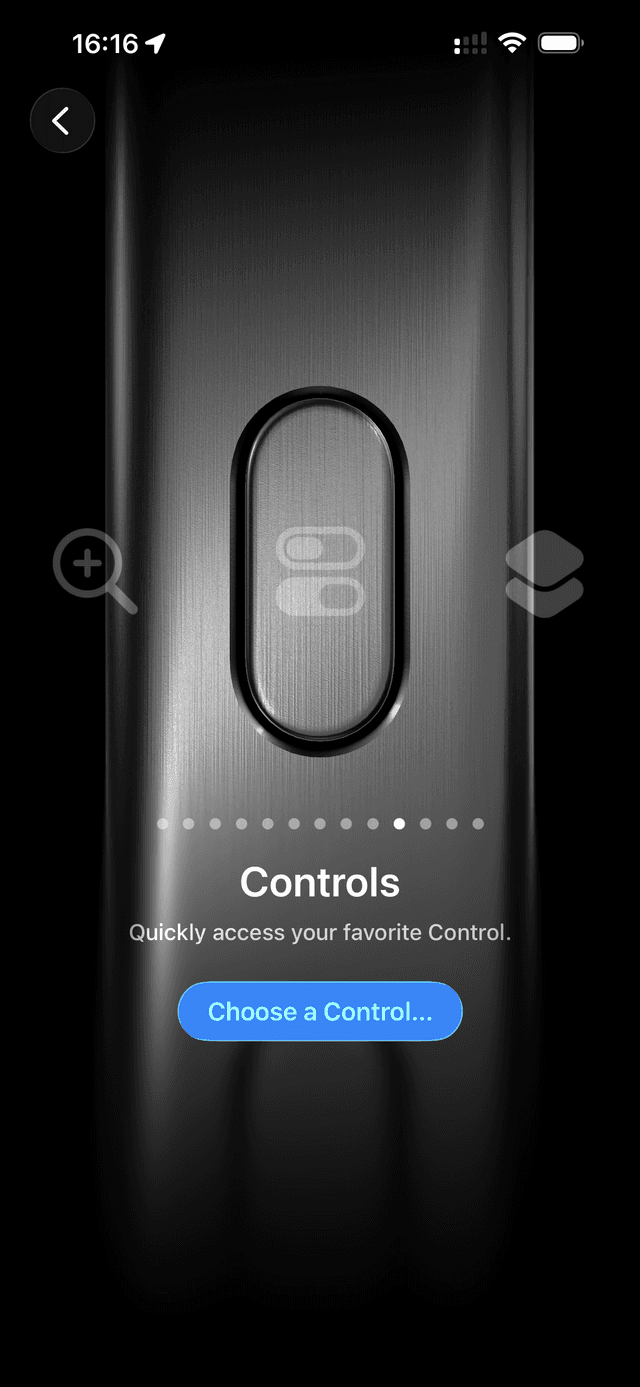
- Swipe to the Controls option and tap Choose a Control.
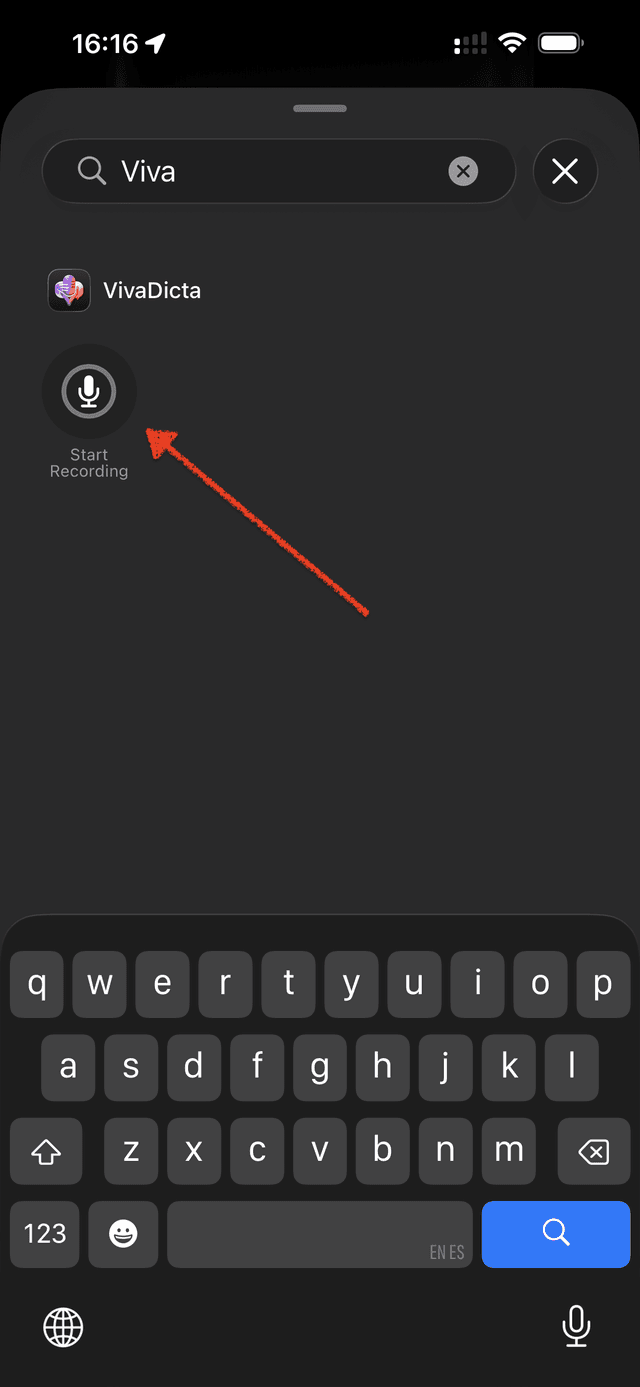
- Search for VivaDicta and tap Start Recording.
Option 2: Shortcuts
Alternatively, you can assign a VivaDicta shortcut to the Action Button. This gives the same result but uses the Shortcuts system.
- Go to Settings > Action Button.
- Swipe to the Shortcut option.
- Tap Choose a Shortcut and select the Record Note shortcut from VivaDicta.
Which Option to Choose?
Both options are functionally identical — a single press of the Action Button opens VivaDicta and starts recording. The Controls option is slightly more direct since it doesn't go through the Shortcuts system. Pick whichever you prefer.