
Watch App Usage
Record, stop, upload, and select modes from the VivaDicta Apple Watch app.
VivaDicta for Apple Watch lets you record voice memos directly from your wrist. Audio is recorded on the watch, then uploaded to your iPhone for transcription and AI processing.
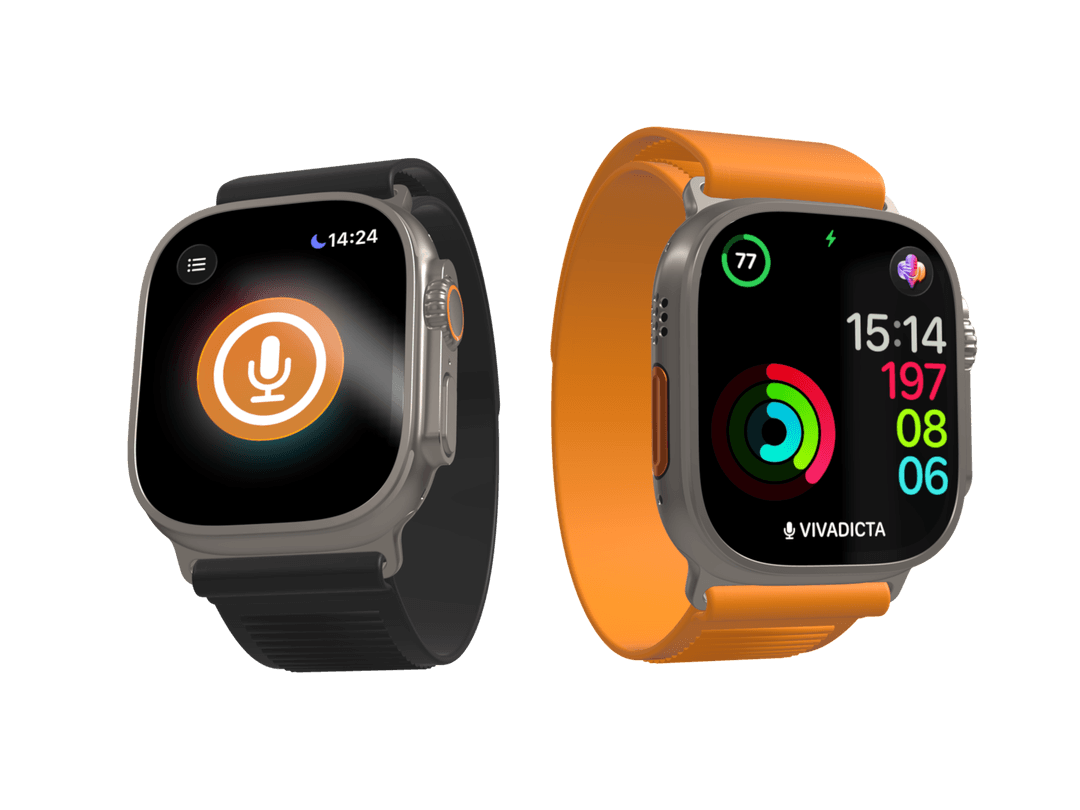
Control Center
Add quick-record to Control Center - from the watch or your iPhone.
Action Button
One-press recording on Apple Watch Ultra.
Complications
Add VivaDicta to your watch face.
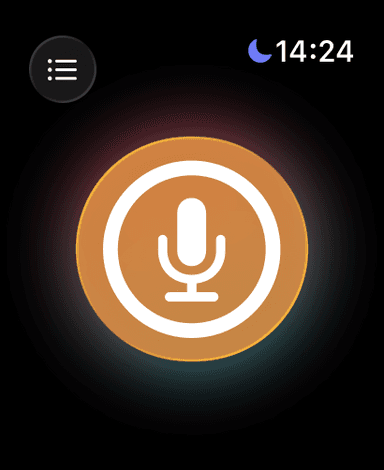
Start a Recording
Open VivaDicta on your Apple Watch and tap the microphone button to start recording.
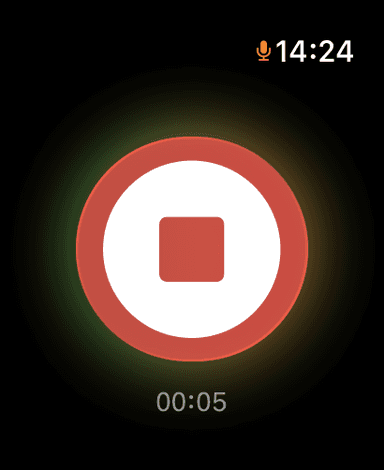
Stop a Recording
While recording, a timer is displayed. Tap the stop button to finish the recording.
Uploading to iPhone
After you stop recording, VivaDicta automatically uploads the audio file to your iPhone. You can see the upload progress on the watch screen.
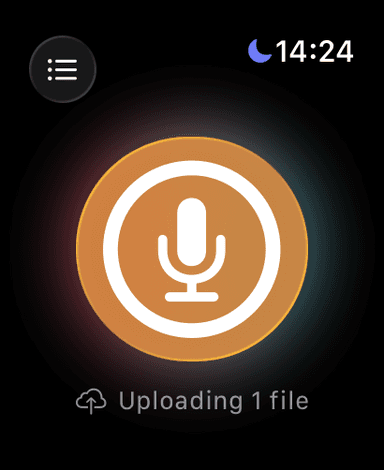
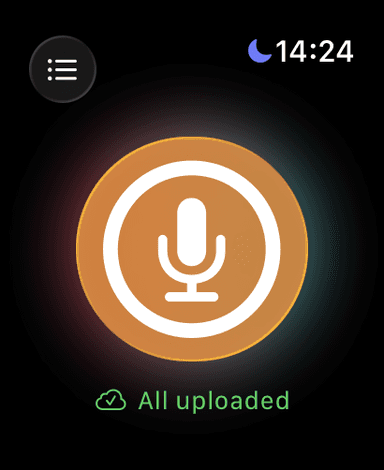
Once uploaded, the VivaDicta app on your iPhone transcribes the audio and applies AI processing using your current mode settings. The transcription will appear in your history on both devices.
Select a Mode
Tap the mode button in the top-left corner to choose which Viva Mode to use for AI processing. The selected mode determines the AI preset applied to your transcription.
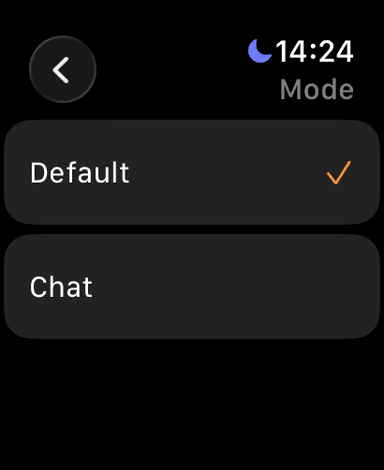
Modes are configured in the VivaDicta iOS app and synced to your watch. See Viva Modes for more details.
Getting Started
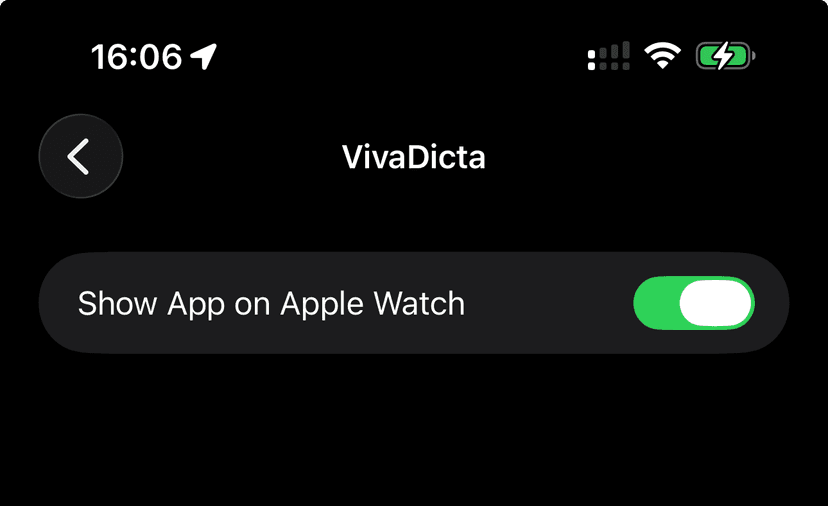
Update VivaDicta to the latest version and the watch app should show up automatically. If it doesn't, open the Watch app on your iPhone, scroll to Available Apps, and enable VivaDicta manually.
Record Anywhere
The watch app makes it easy to capture ideas when your phone isn't nearby. Your recordings are uploaded and transcribed in the background so they're ready when you open the app.
When This Is Useful
- During workouts. Capture an idea while running without breaking stride.
- In meetings. Discreetly start recording from your wrist without pulling out your phone.
- While driving. Safer than fumbling with your phone.
- When your phone isn't nearby. The watch records locally and uploads when connected.
With the Action Button configured, capturing a note is just a single button press - no need to raise your wrist or look at the screen.