
Back Tap
Start recording by tapping the back of your iPhone — step-by-step setup guide.
Back Tap lets you start recording in VivaDicta by tapping the back of your iPhone — useful if your phone is on a desk or in a case without easy access to buttons.
Back Tap requires a custom shortcut (it cannot use pre-built app shortcuts directly). The easiest way to create one is to duplicate the pre-built Record Note shortcut.
Step 1: Create a Custom Shortcut
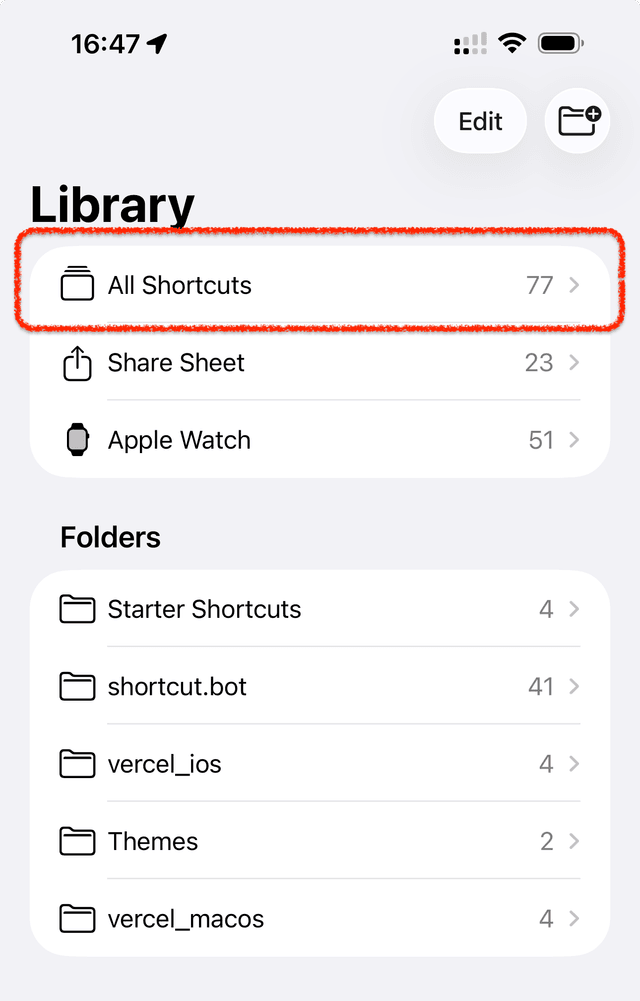
Open All Shortcuts
Open the Shortcuts app and tap All Shortcuts in the Library.
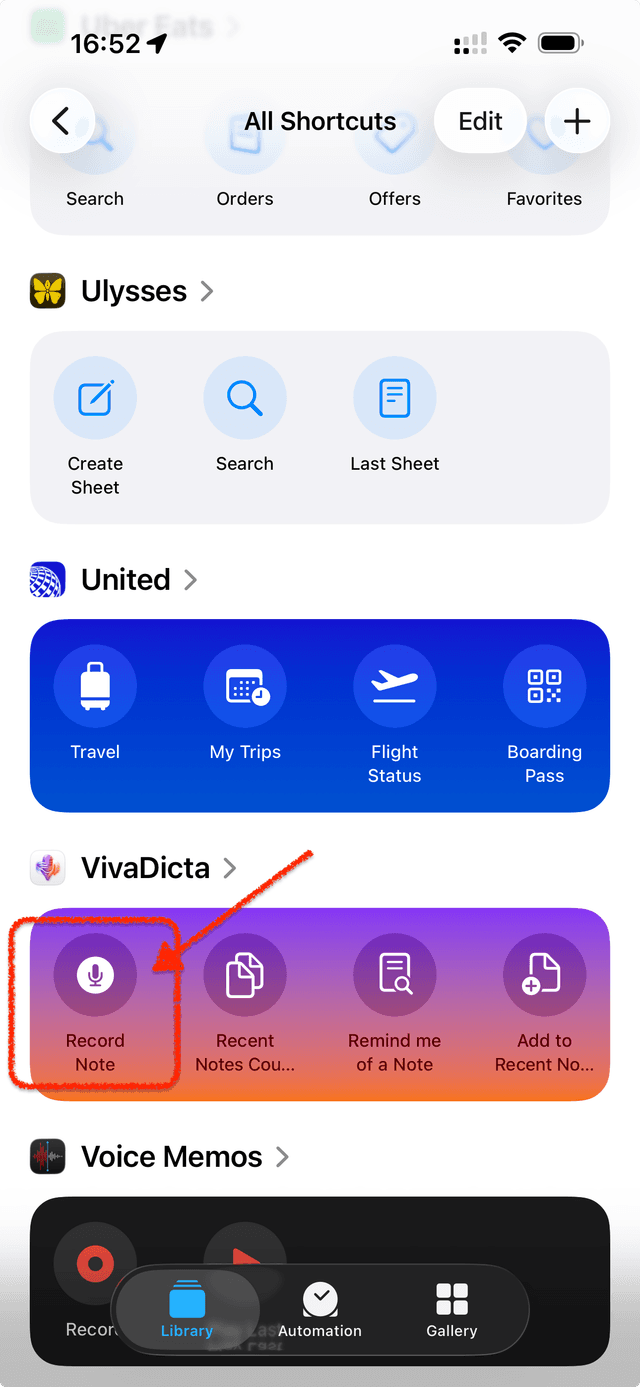
Find VivaDicta
Scroll down to the VivaDicta section. You will see the pre-built shortcuts: Record Note, Recent Notes Count, Remind me of a Note, and Add to Recent Note.
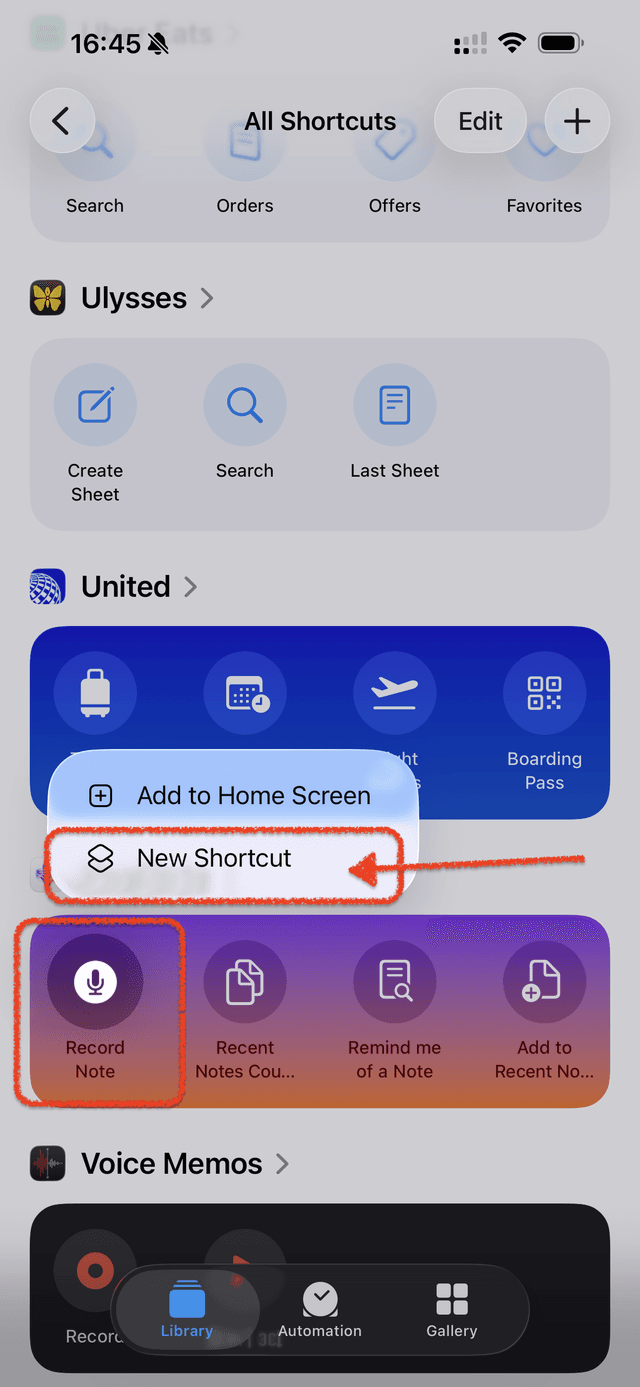
Long-Press Record Note
Long-press on the Record Note shortcut. A menu will appear with two options: Add to Home Screen and New Shortcut.
Tap New Shortcut. This creates a custom shortcut called Record in VivaDicta that you can assign to Back Tap.
Step 2: Assign to Back Tap
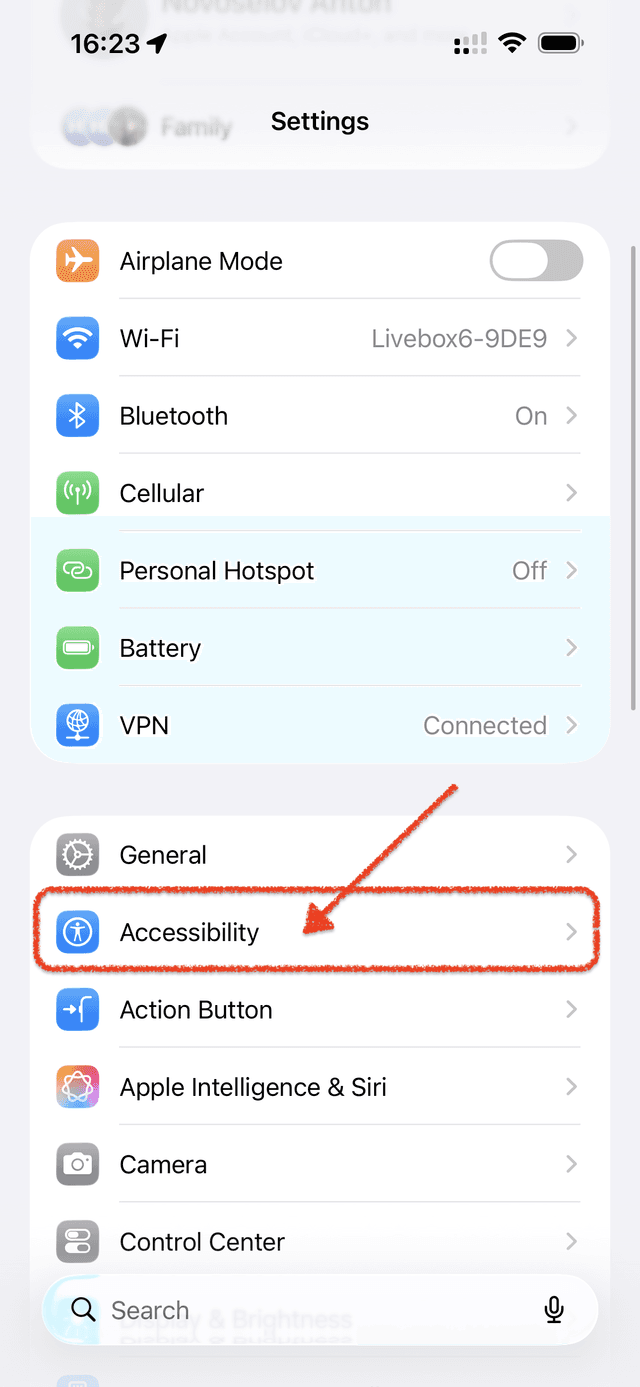
Open Settings
Go to Settings > Accessibility.
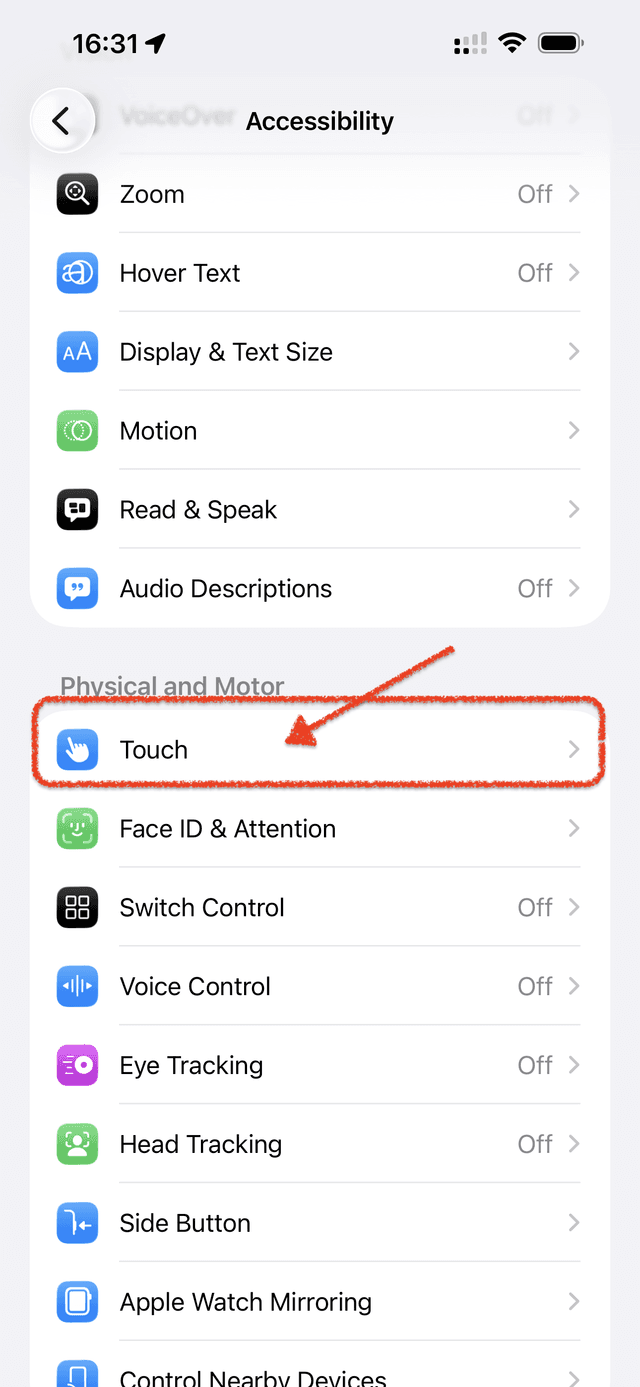
Find Touch
Scroll down to the Physical and Motor section and tap Touch.
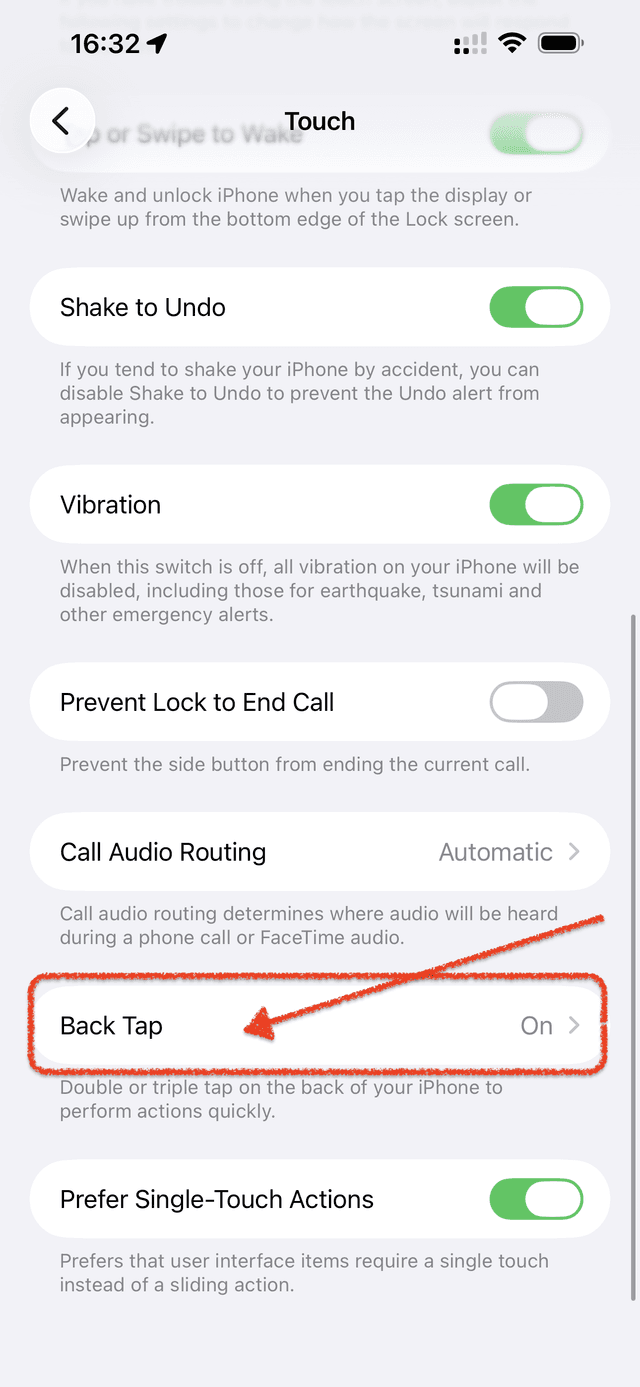
Open Back Tap
Scroll to the bottom and tap Back Tap.
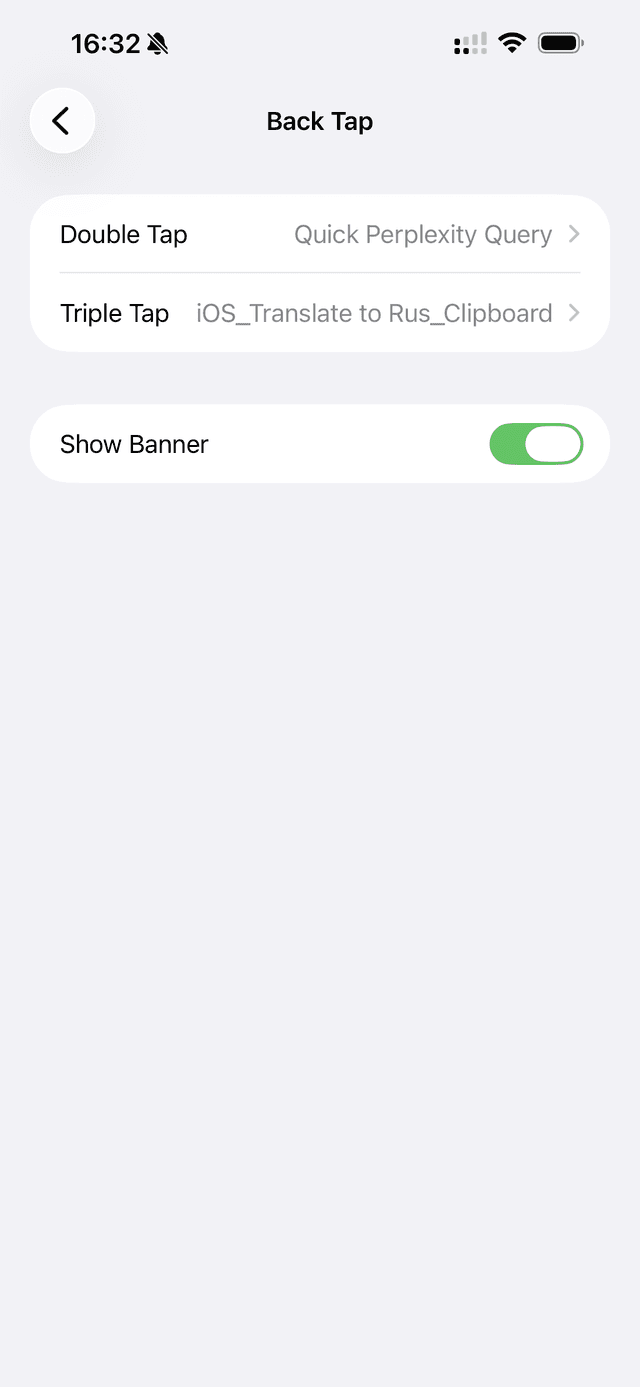
Choose Double Tap or Triple Tap
Select Double Tap or Triple Tap depending on your preference.
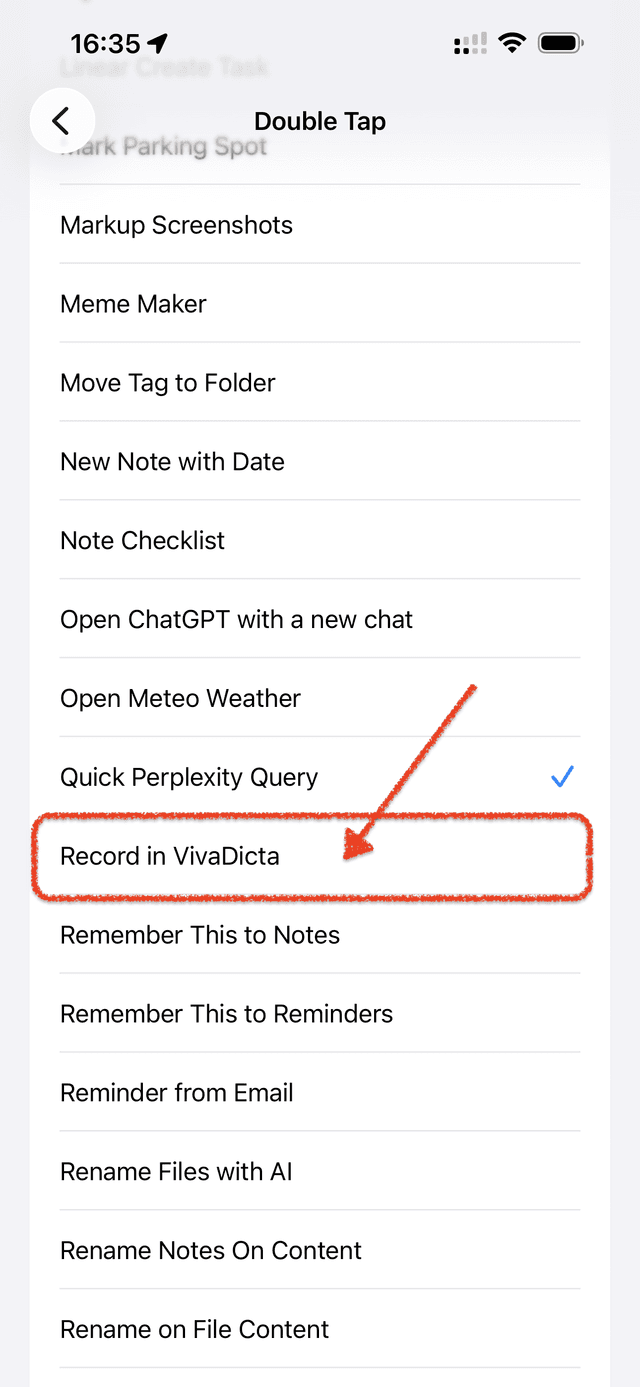
Select Record in VivaDicta
Scroll down and select Record in VivaDicta from the shortcut list.
Now tap the back of your iPhone two or three times (depending on your choice) to start recording in VivaDicta — from any screen, even with the phone locked.