
Watch Control Center
Add a quick-record control to your Apple Watch Control Center - from the watch or your iPhone.
Add a VivaDicta control to the Apple Watch Control Center for quick recording. Tap the control to start recording, tap it again to stop. VivaDicta offers two types of controls - one that records on the watch itself, and one that triggers recording on your iPhone.
Requires watchOS 26 or later.
Two Ways to Record
- VivaDicta watch control (black circle icon) - records audio on the Apple Watch and uploads it to your iPhone for transcription.
- VivaDicta "From Your iPhone" control (white square icon) - starts the VivaDicta app on your iPhone and records audio directly on the phone.
Both options are available so you can choose what works best for your situation. Use the watch control when your iPhone is not nearby or in your pocket. Use the iPhone control when you want the highest quality recording from your phone's microphone.
Adding the Watch Control
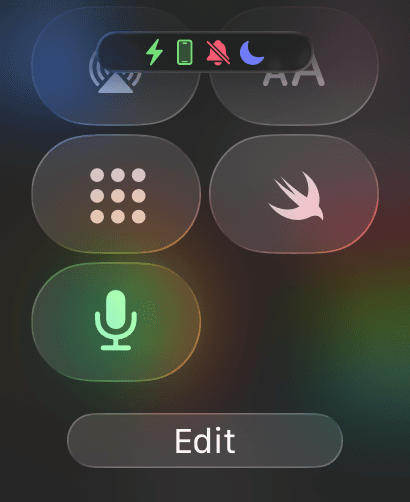
- On your Apple Watch, swipe up from the bottom to open Control Center.
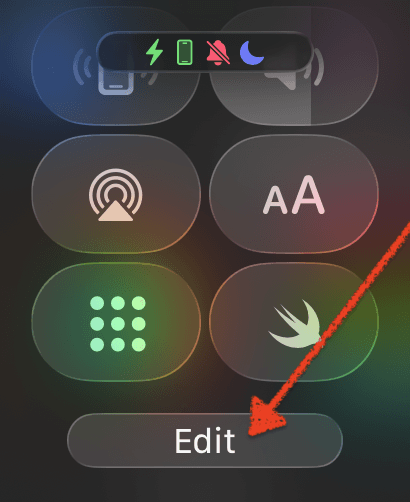
- Scroll down and tap Edit.
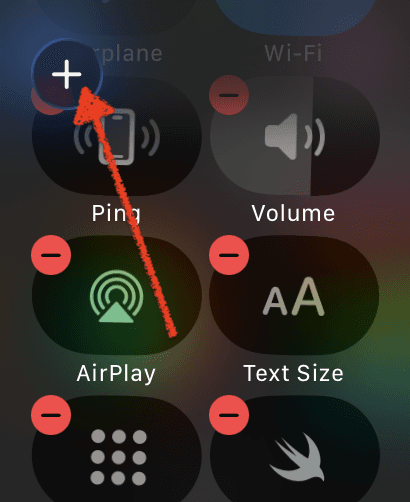
- Tap the + button in the top-left corner to add a new control.
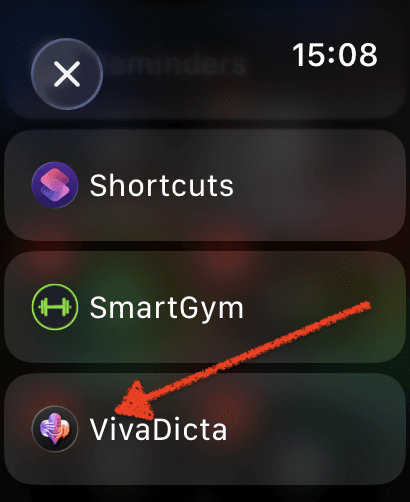
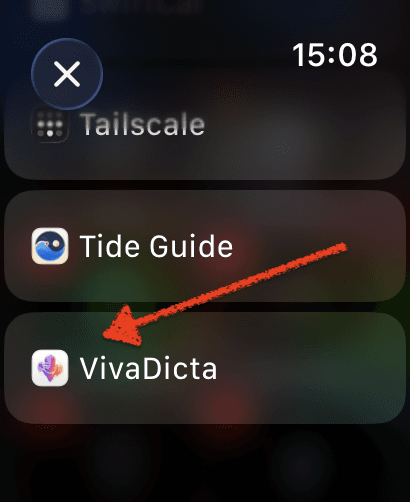
- Scroll down and find VivaDicta in the list.
- Select the Quick Record control. It will be added to your Control Center.
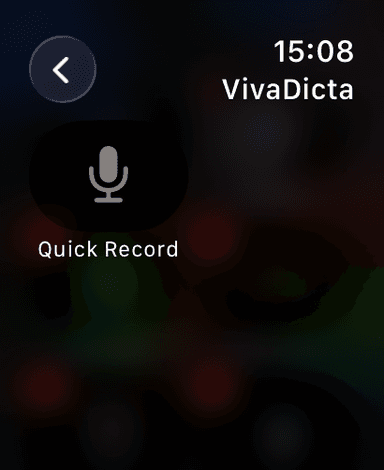
The VivaDicta microphone control now appears in your Control Center, ready to use.
Adding the "From Your iPhone" Control
Follow the same steps above, but when browsing the control list, look for VivaDicta with the white square icon and the label "From Your iPhone".
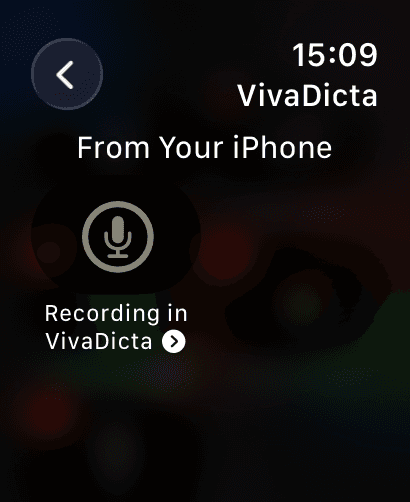
When you tap this control, VivaDicta opens on your iPhone and starts recording there. The watch shows a "Recording in VivaDicta" confirmation.