
Keyboard Setup
Enable the VivaDicta custom keyboard for voice input in any app.
VivaDicta includes a custom keyboard extension that lets you transcribe speech directly into any app — Messages, Notes, Mail, Safari, and more.
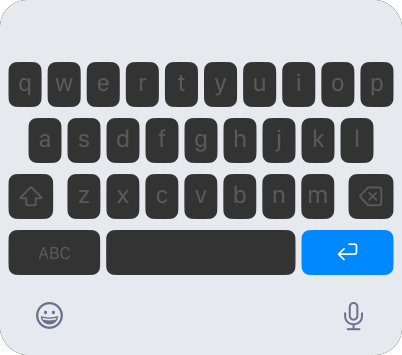

Install the Keyboard
- Open Settings on your iPhone or iPad.
- Go to General → Keyboard → Keyboards.
- Tap Add New Keyboard.
- Select VivaDicta from the list.
- Tap VivaDicta again, then enable Allow Full Access.
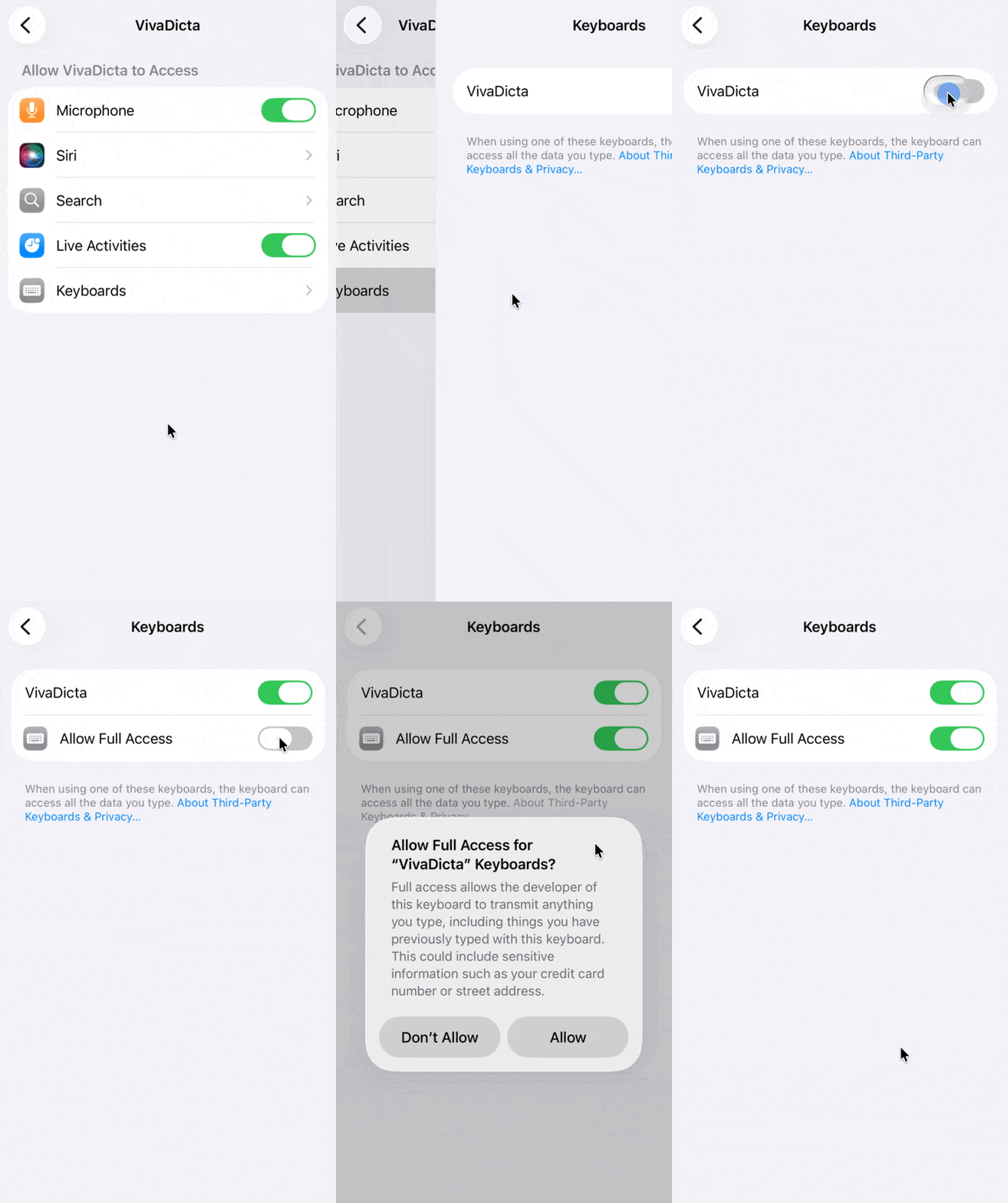
Why Full Access?
Full Access is required for the keyboard to perform transcription and AI processing. Without it, the keyboard cannot record audio or communicate with transcription services. VivaDicta does not collect or share any of your data.
Using the Keyboard

- Open any app where you can type (Messages, Notes, etc.).
- Tap the text field, then switch to the VivaDicta keyboard using the globe icon.
- Tap the record button and start speaking.
- Your transcribed text is inserted directly into the text field.
Keyboard Modes

The VivaDicta keyboard has three modes. Tap the toggle button to cycle through them: Voice → AI Text Processing → Recent Notes → Voice.
- Voice Input — record and transcribe speech directly into the current text field.
- AI Text Processing — process selected text or all text in the field using AI (fix grammar, reformat, translate, etc.).
- Recent Notes — quickly access and paste your recent transcriptions.
Tips
- Swipe left or right on the Viva Mode switcher
 to switch between the same Viva Modes you have in the app.
 - The keyboard uses the same transcription and AI settings as the main app.
- All transcriptions made via the keyboard are saved to your history in the main app.