
Shortcuts & Siri
Automate VivaDicta with iOS Shortcuts and Siri voice commands.
VivaDicta integrates deeply with iOS through Shortcuts, Siri, the Action Button, and more — giving you multiple ways to start recording without even opening the app.
Ready-to-Use Shortcuts
VivaDicta comes with pre-built shortcuts that work immediately — no setup required. You can find them in the Shortcuts app under VivaDicta, or just ask Siri.
- Record Note — opens VivaDicta and starts recording. Say "Record in VivaDicta" or "Take a note in VivaDicta" to trigger it via Siri.
- Recent Notes Count — tells you how many notes you've recorded recently. Say "Count my recent notes in VivaDicta".
- Remind me of a Note — surfaces a note from your transcription history. Say "Remind me of a VivaDicta note".
- Add to Recent Note — appends to your most recent transcription. Say "Add to my most recent note in VivaDicta".
- Open a Note — opens a specific transcription. Say "Open a note in VivaDicta".
These shortcuts work hands-free — great for when you're driving, cooking, or on a walk.
Action Button
On iPhone 15 Pro, iPhone 16, and later, you can assign a VivaDicta shortcut to the Action Button for instant one-press recording:
- Go to Settings > Action Button.
- Select Shortcut.
- Choose the Record Note shortcut.
Now a single press of the Action Button starts recording — no unlock, no app switching, no taps on screen.
Back Tap
Trigger a VivaDicta recording by tapping the back of your iPhone — useful if your phone is on a desk or in a case without easy access to buttons. Back Tap requires creating a custom shortcut first. See the Back Tap setup guide for detailed step-by-step instructions with screenshots.
Spotlight Search
All your transcriptions are automatically indexed by iOS Spotlight. Swipe down from the home screen and type a keyword — matching transcriptions appear in search results. Tap a result to jump directly to the transcription detail view in VivaDicta.
Spotlight searches across original text, AI-processed text, and all variation outputs — so you'll find the note even if the match is in a summary or translation.
Custom Shortcuts (Power Users)
Beyond the ready-to-use shortcuts, VivaDicta provides App Intents that appear as actions in the Shortcuts app. You can combine them with any other shortcut steps to build custom automations.
Available Actions
- Start Recording — opens VivaDicta and begins recording immediately.
- Get Recent Transcriptions — retrieves your latest transcriptions for use in other shortcut steps (e.g., send via email, save to Notes).
- Search Transcriptions — finds transcriptions matching a text query and returns them as shortcut output.
Creating a Shortcut
- Open the Shortcuts app.
- Tap + to create a new shortcut.
- Tap Add Action and search for VivaDicta.
- Choose an action (e.g., Start Recording).
- Optionally chain more steps — send the result via Messages, save to Files, append to a note, etc.
- Give your shortcut a name and tap Done.
Example Automations
- Voice journal — record a note, then append the transcript to a daily journal file in Notes or Files.
- Meeting notes — record and automatically share the transcript with your team via Messages or Slack.
- Quick capture — record a voice memo and save the AI- processed text to your Reminders or Todoist.
- Email dictation — record your message, then create a new email draft with the transcribed text as the body.
Add to Home Screen
You can add a dedicated icon to your home screen that launches VivaDicta and starts recording in one tap — separate from the main app icon.
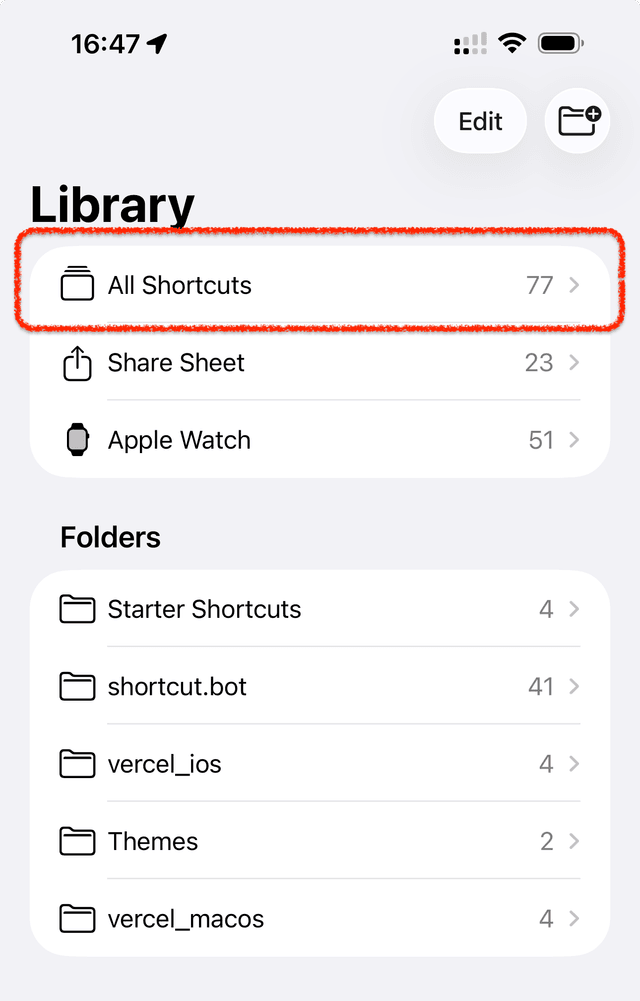
- Open the Shortcuts app and go to All Shortcuts.
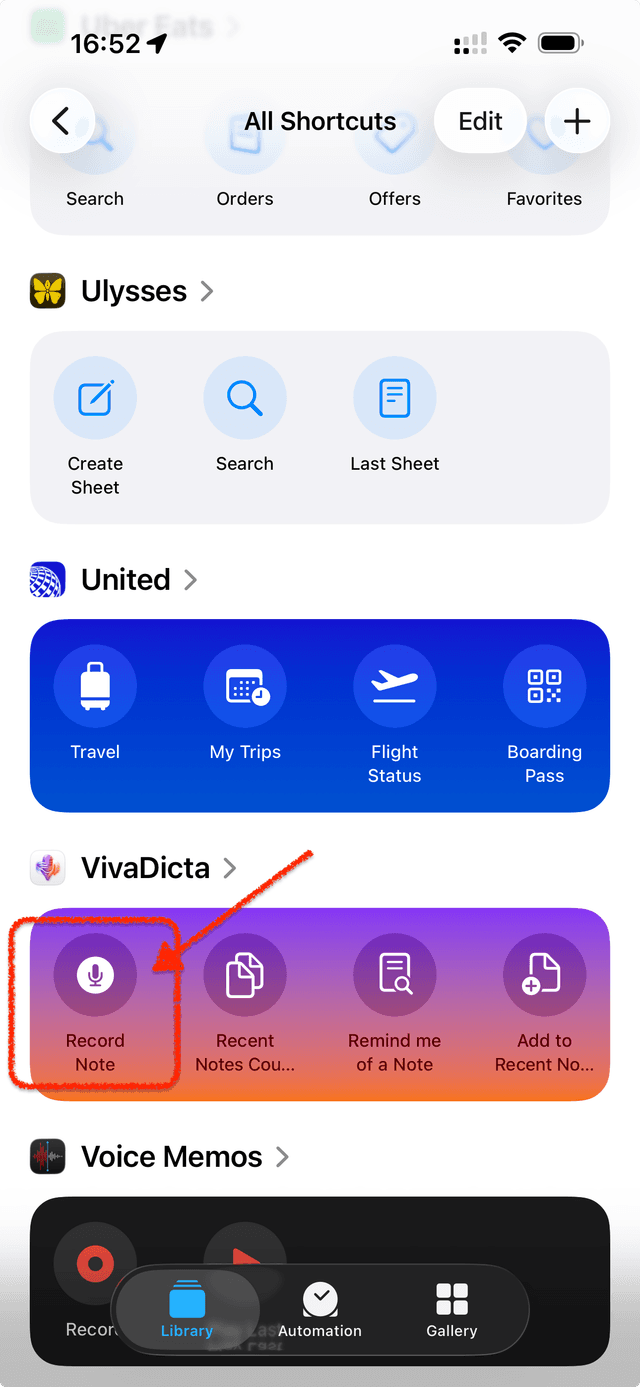
- Scroll to the VivaDicta section.
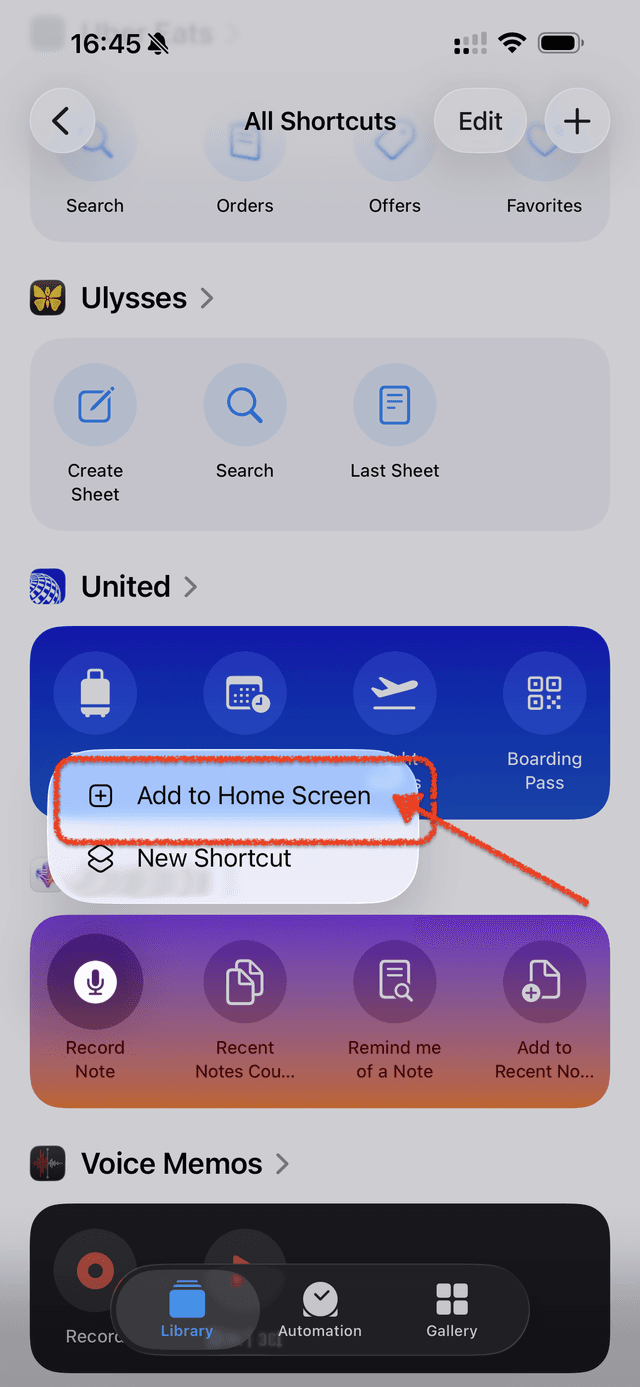
- Long-press on Record Note and select Add to Home Screen.
Tips
- Combine with Focus modes — create a Shortcuts automation that triggers when you enter a Focus mode (e.g., "Work") and automatically sets a specific VivaDicta mode.
- Apple Watch — shortcuts you create on iPhone are available on Apple Watch too. Trigger VivaDicta recording from your wrist.