
Custom Keyboard
Voice input, AI text processing, and recent notes — all from the keyboard.
The VivaDicta keyboard brings voice transcription and AI processing to every app on your iPhone or iPad. It has three modes, each accessible by tapping the toggle button  .
.
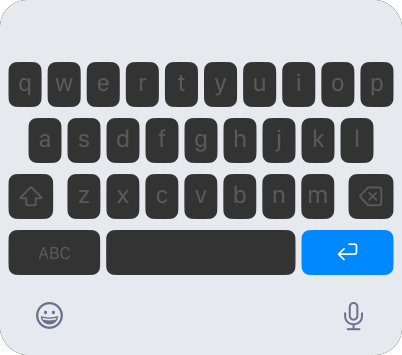

Voice Input
Tap the record button in any app to transcribe speech directly at your cursor. The keyboard uses the same transcription and AI processing pipeline as the main app — your text is transcribed, optionally processed by AI, and inserted into the text field automatically.
AI Text Processing
Process text that is already in the text field. Place your cursor in the text or select a portion, then tap a preset to apply AI processing — translate, rewrite, summarize, fix grammar, and more. The processed text replaces the selection or the full field content.
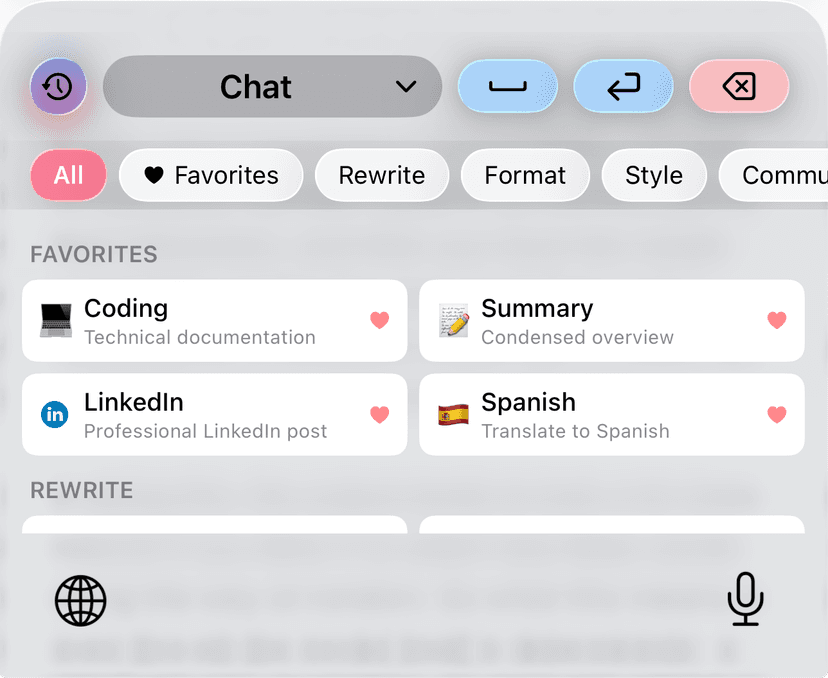
Recent Notes
Quickly access your last 5 transcriptions from the main app. Tap any note to insert it at the cursor. The keyboard supports multi-level undo for consecutive pastes, so you can try different notes and undo back.
Switching Between Modes
Tap the toggle button to cycle between Voice Input, AI Text Processing, and Recent Notes.
Viva Modes in the Keyboard
Swipe left or right on the Viva Mode switcher  to switch between your configured Viva Modes. Each mode applies its own transcription and AI settings, so you can quickly switch context without leaving the keyboard.
Utility Buttons
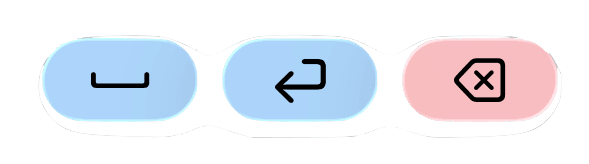
The keyboard includes space, return, and backspace buttons. Hold backspace to repeat for quick deletion.
Settings Sync
The keyboard syncs all settings with the main app via a shared App Group. Any changes you make in the main app — providers, models, presets, modes — are reflected in the keyboard automatically.
Setup
See Keyboard Setup for installation instructions and Full Access details.