
Import Audio
Import audio files via Share Sheet, file picker, or Open With.
Four Ways to Import Audio
VivaDicta can transcribe audio files you already have — not just live recordings. There are four ways to get audio into the app:
Share Sheet
From any app that handles audio (Voice Memos, Files, Safari, etc.), tap the Share button and select VivaDicta from the share sheet. The audio file is imported and transcribed automatically.
Transcribe Action
The Transcribe with VivaDicta action appears in the Share Sheet action list. You can pin it to the Quick Actions row for faster access.
File Picker
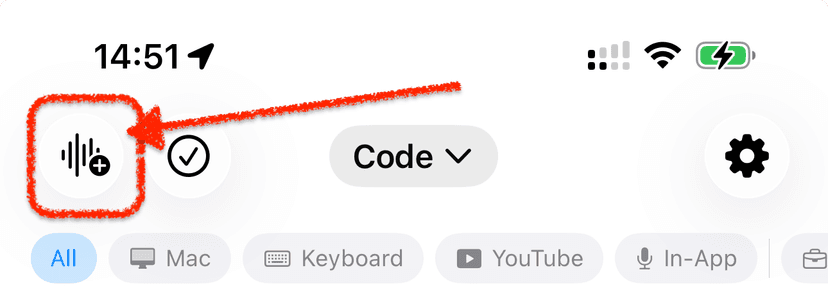
Inside VivaDicta, tap the import button (waveform icon) in the toolbar. This opens a file browser where you can navigate to and select any audio file on your device or in iCloud Drive.
Open With
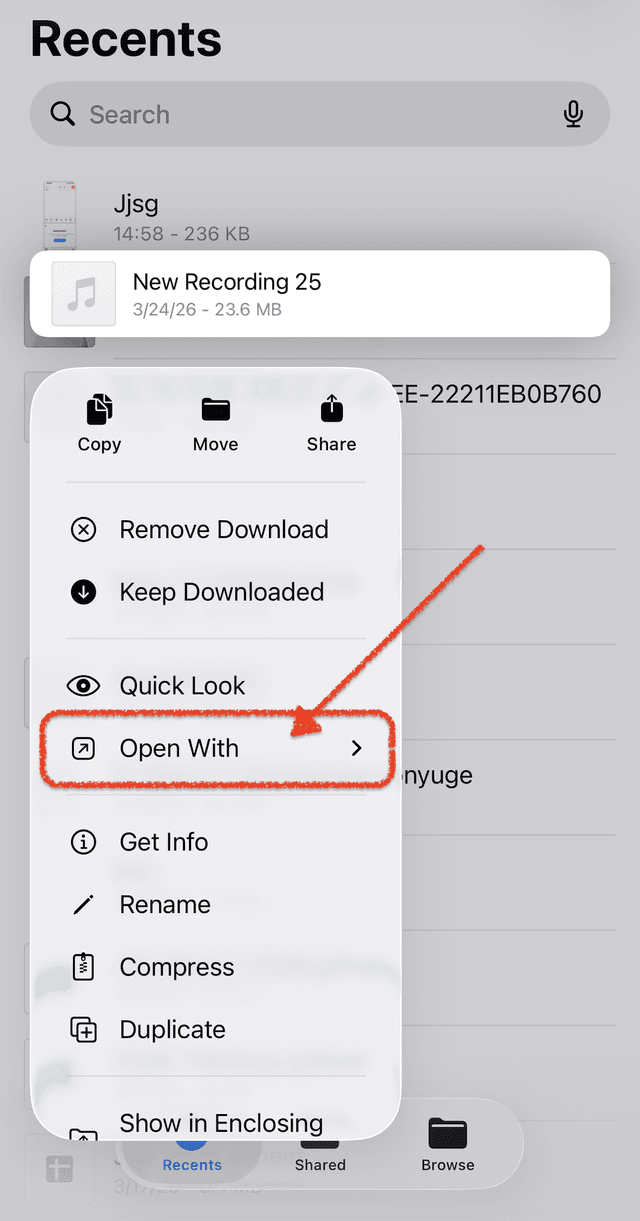
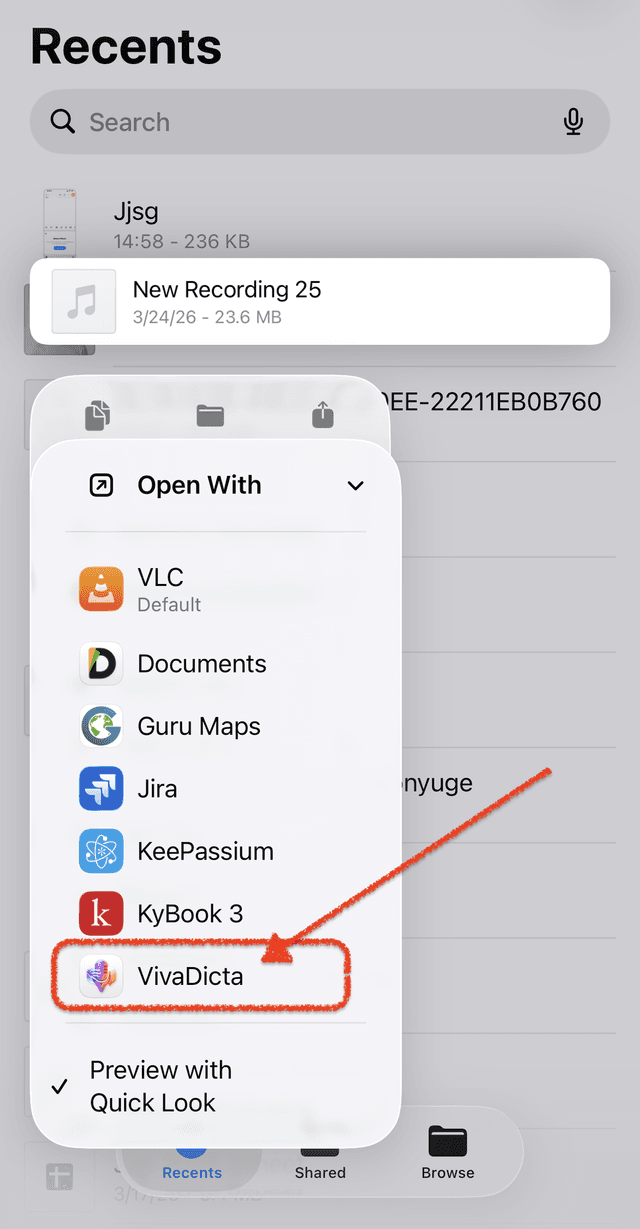
In the Files app, long-press an audio file and choose Open With > VivaDicta. The file opens directly in the app for transcription.
Supported Formats
WAV, MP3, M4A, AIFF, MP4, MOV, AAC, FLAC, CAF, AMR, OGG, OPUS, 3GP
After Import
Once imported, the audio is transcribed using your current mode settings — whichever transcription model and language you have selected. If AI processing is enabled, it is applied automatically after transcription completes.
Imported transcriptions appear in your history just like any other recording, with full access to playback, variations, and sharing.