
AI Rewrite
Process any note with AI presets — generate summaries, key points, translations, and more as variations.
The AI Rewrite feature lets you process any transcription with different AI presets directly from the note detail view. Each result is saved as a variation — so you can generate summaries, key points, translations, and more from the same recording without losing any previous output.
How to Use
- Select a transcription from your History sidebar.
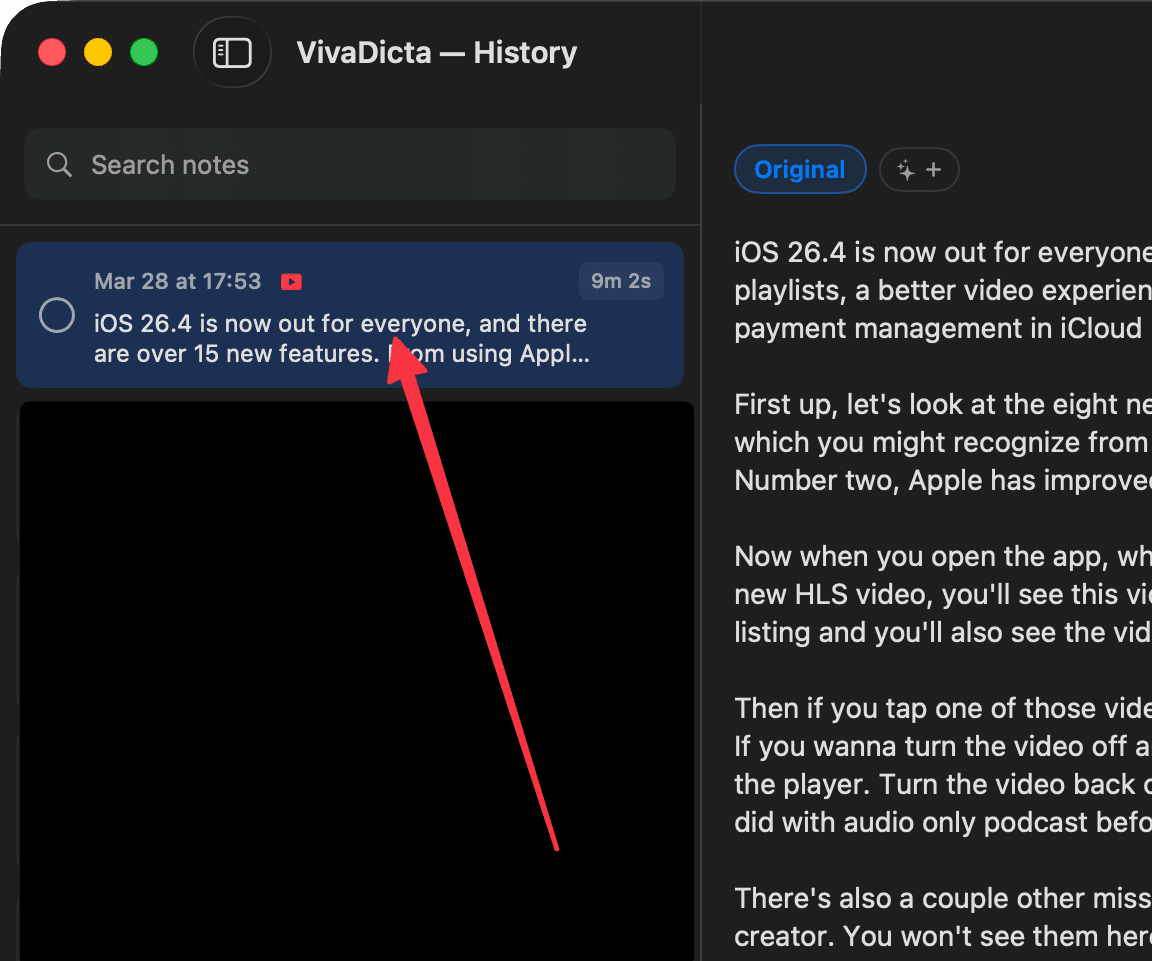
- Click the AI button in the bottom toolbar (the purple gradient button).
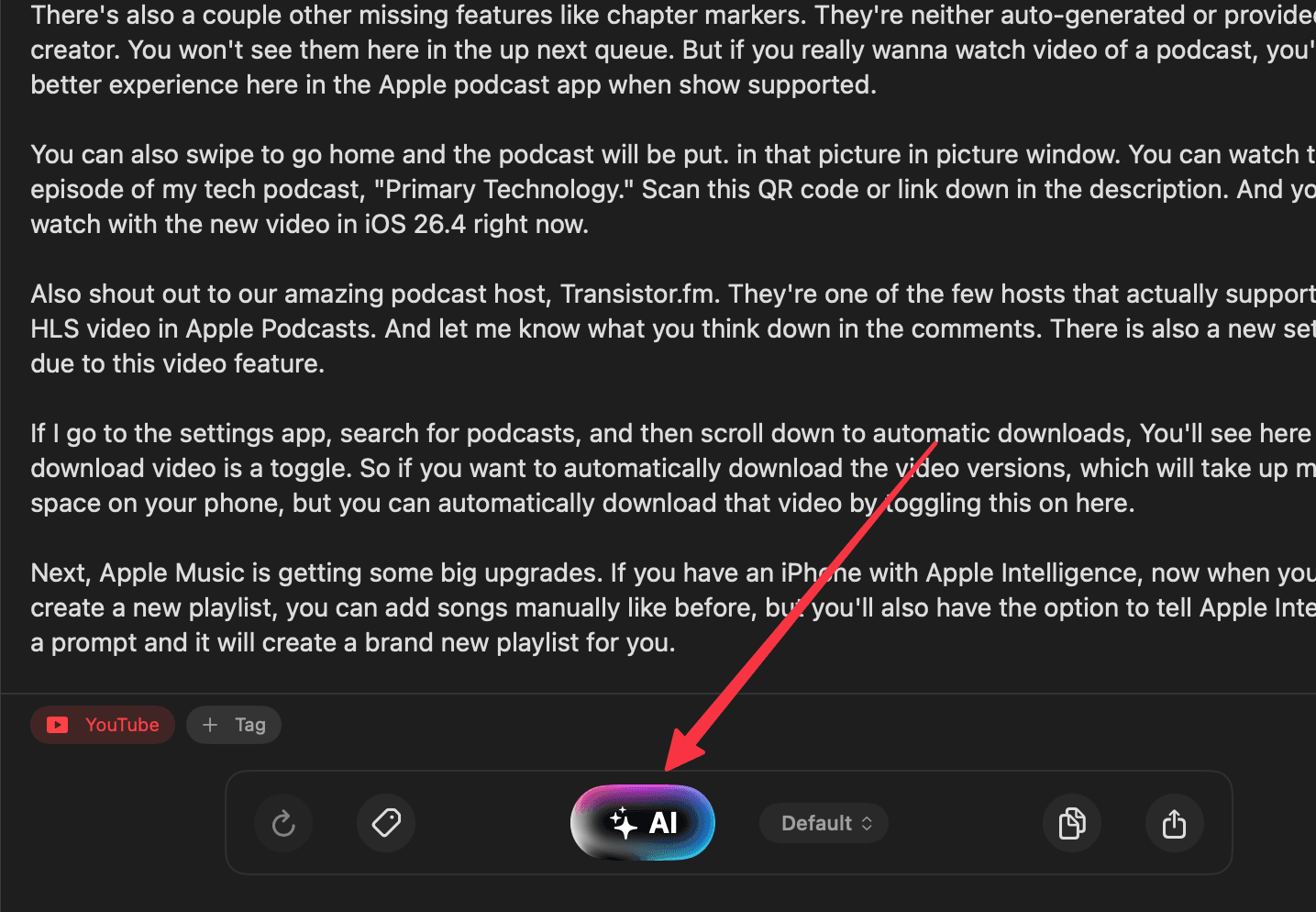
- The preset picker opens as a popover — browse by category (Favorites, Rewrite, Format, Style, Communication, Summarize), switch between System and Custom presets, or search.
- Click a preset (e.g. Summary, Coding, Spanish). The AI processes your transcription immediately.
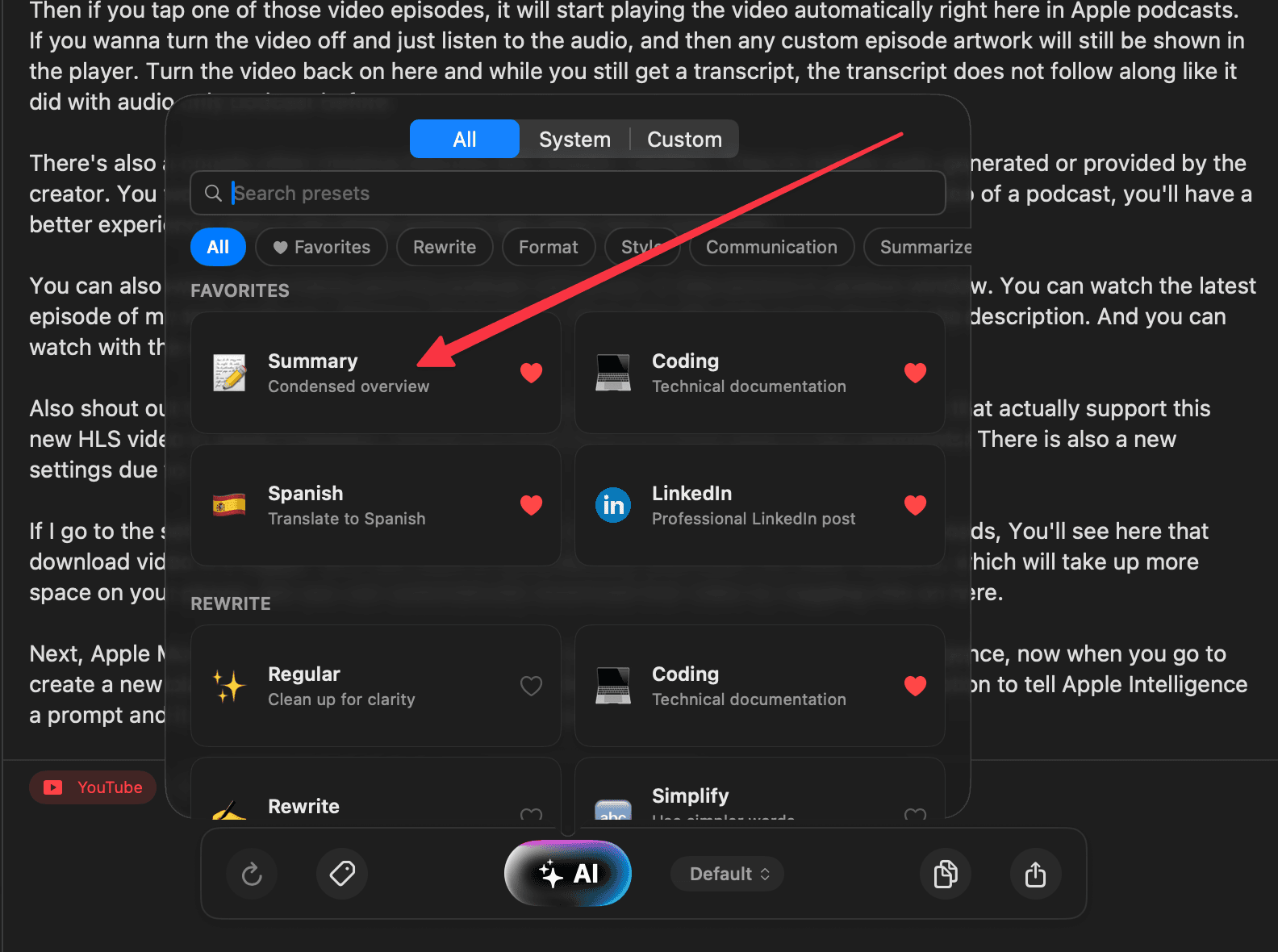
- The result appears as a new variation tab at the top of the note. Switch between variations by clicking the tabs.
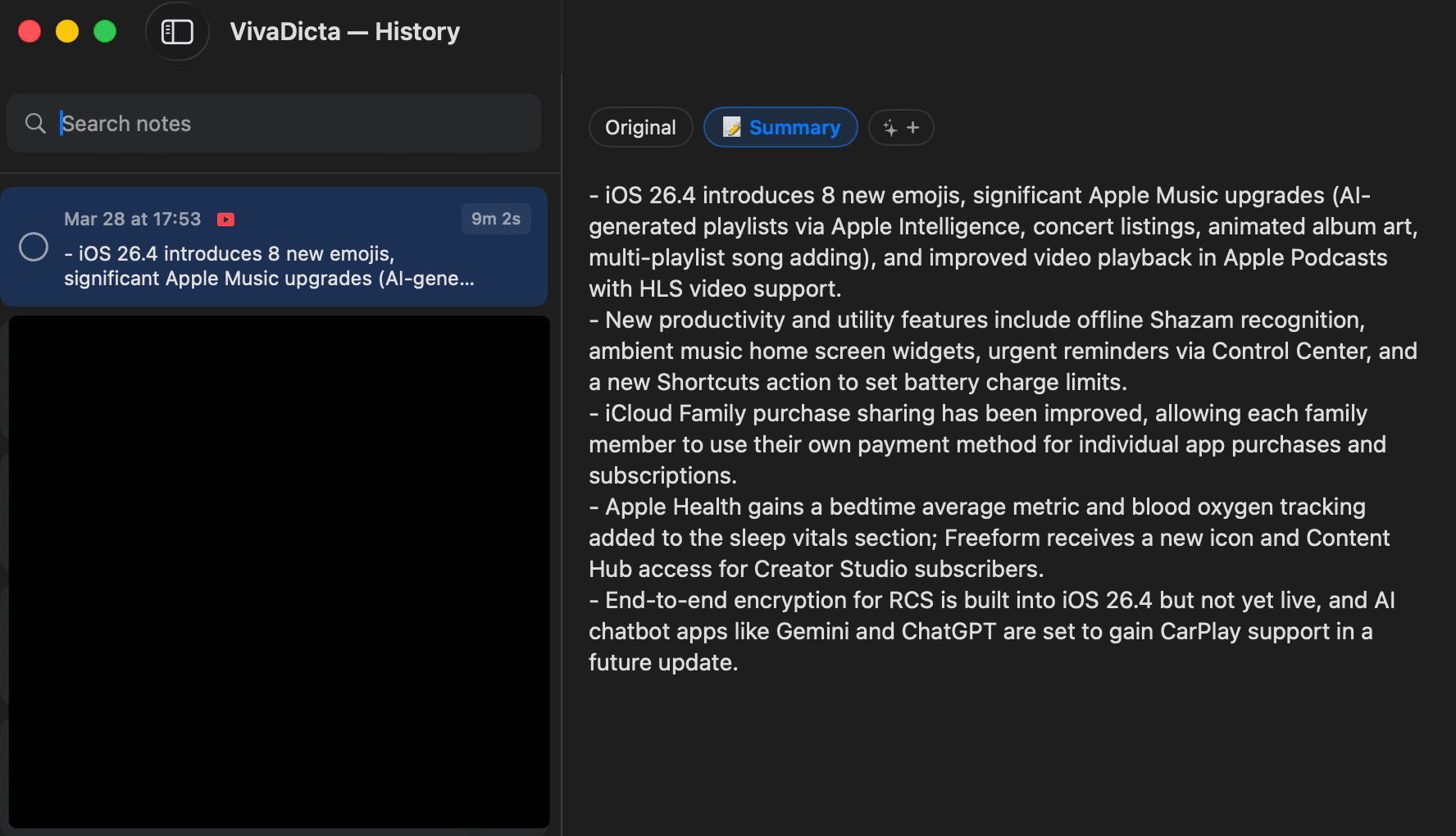
Variation Tabs
Each variation is shown as a tab at the top of the note detail view:
- Original — your raw transcription, always preserved.
- Named tabs — each AI-processed variation shows the preset name and icon (e.g. Summary, Coding).
- + button — quick-add button to generate more variations.
Click any tab to view that variation. The original transcription is never modified.
Available Presets
VivaDicta ships with 40+ built-in presets organized by category:
- Rewrite — Regular, Professional, Casual, Expand, Email, Chat, Coding, Rewrite
- Summarize — Summary, Action Points, Takeaways, Mind Map, Key Points
- Learn & Study — Study Notes, Definitions, Quiz, Flashcards, ELI5
- Create — Blog Post, Social Media, Headline, Script
- Translate — 20+ languages
You can also create custom presets with your own instructions in Settings → Presets.
Favorites
Click the heart icon on any preset to mark it as a favorite. Favorite presets appear first in the picker, making your most-used presets quick to access.
Tips
- Generate multiple variations from the same recording — compare a Summary with Key Points, or try Professional vs Casual tone.
- Long recordings work great with Summary and Action Points to extract the essentials.
- Use Coding to extract code snippets, commands, or technical content from a dictated recording.
- Translate a recording into multiple languages — each translation is saved as its own variation.
Related
- AI Processing — how AI providers and presets work together.