
VivAgents Server
Share CLI agents (Claude, Codex, Gemini) from your Mac with iOS devices.
VivAgents lets you use CLI agents (Claude Code, Codex CLI, Gemini CLI) for AI processing in VivaDicta — using your existing subscriptions with no API keys needed. You can use agents installed locally on your Mac, or connect to a remote VivAgents server running on another machine.
Two modes: Use CLI agents installed on your own Mac (local), or connect to a remote VivAgents server running on another Mac, Linux VPS, or any machine on your network.
Supported Agents
| Agent | Provider | Subscription |
|---|---|---|
| Claude Code | Anthropic | Claude Pro, Max, or Team |
| Codex CLI | OpenAI | ChatGPT Plus, Pro, or Team |
| Gemini CLI | Any Google account (free tier available) |
Using Local CLI Agents on Your Mac
Step 1: Install CLI Agents
Install one or more CLI agents on your Mac and authenticate with your subscription:
- Claude Code — download from claude.ai/code, then run
claudein Terminal to authenticate. - Codex CLI —
npm install -g @openai/codex, thencodex login. - Gemini CLI — install from github.com/google-gemini/gemini-cli, then run
geminito authenticate.
Step 2: Enable CLI Agents in VivaDicta
For a step-by-step visual guide, see CLI Agents Setup.
- Open VivaDicta on your Mac.
- Click AI Providers in the sidebar.
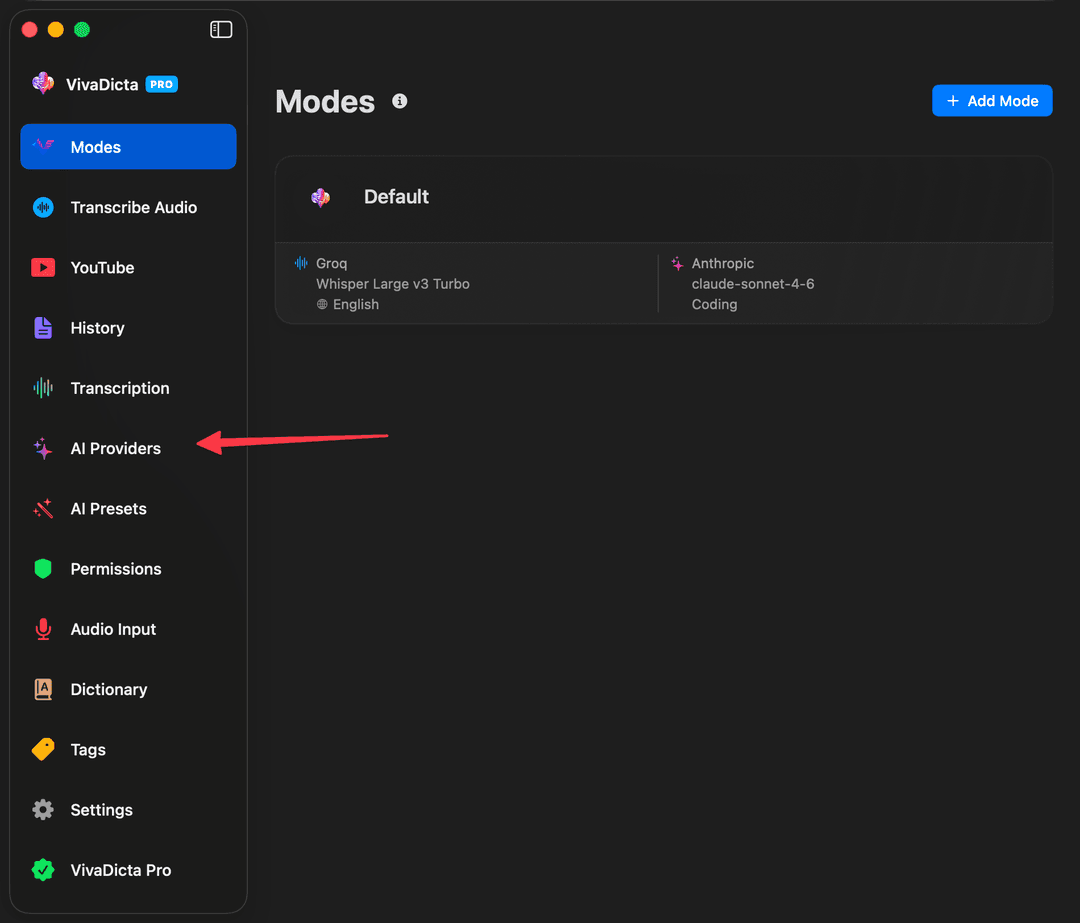
- Click on the provider card you want to use (e.g. Anthropic, OpenAI, or Gemini).
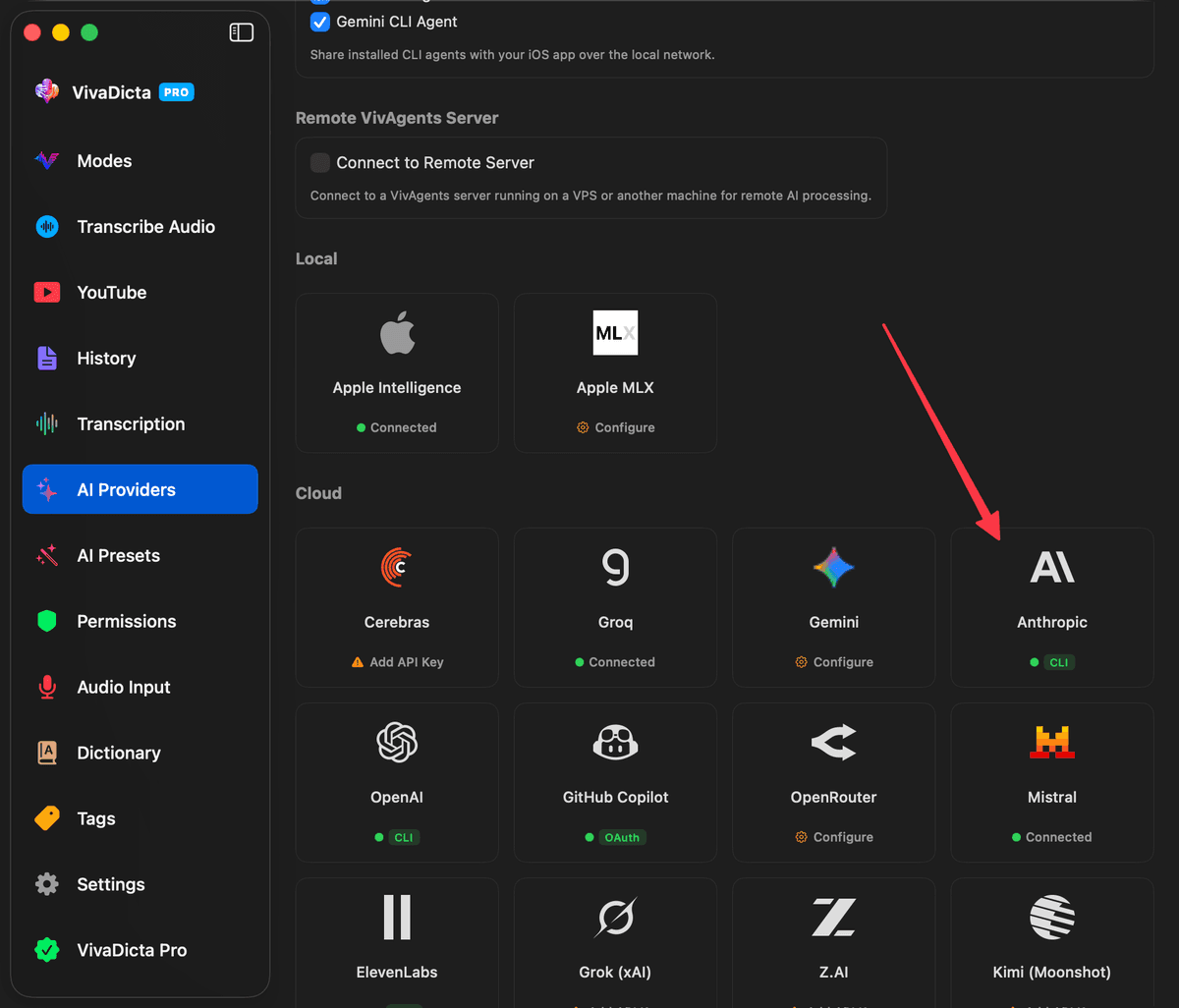
- Enable the CLI agent toggle (e.g. “Use Claude CLI”, “Use Codex CLI”, “Use Gemini CLI”).
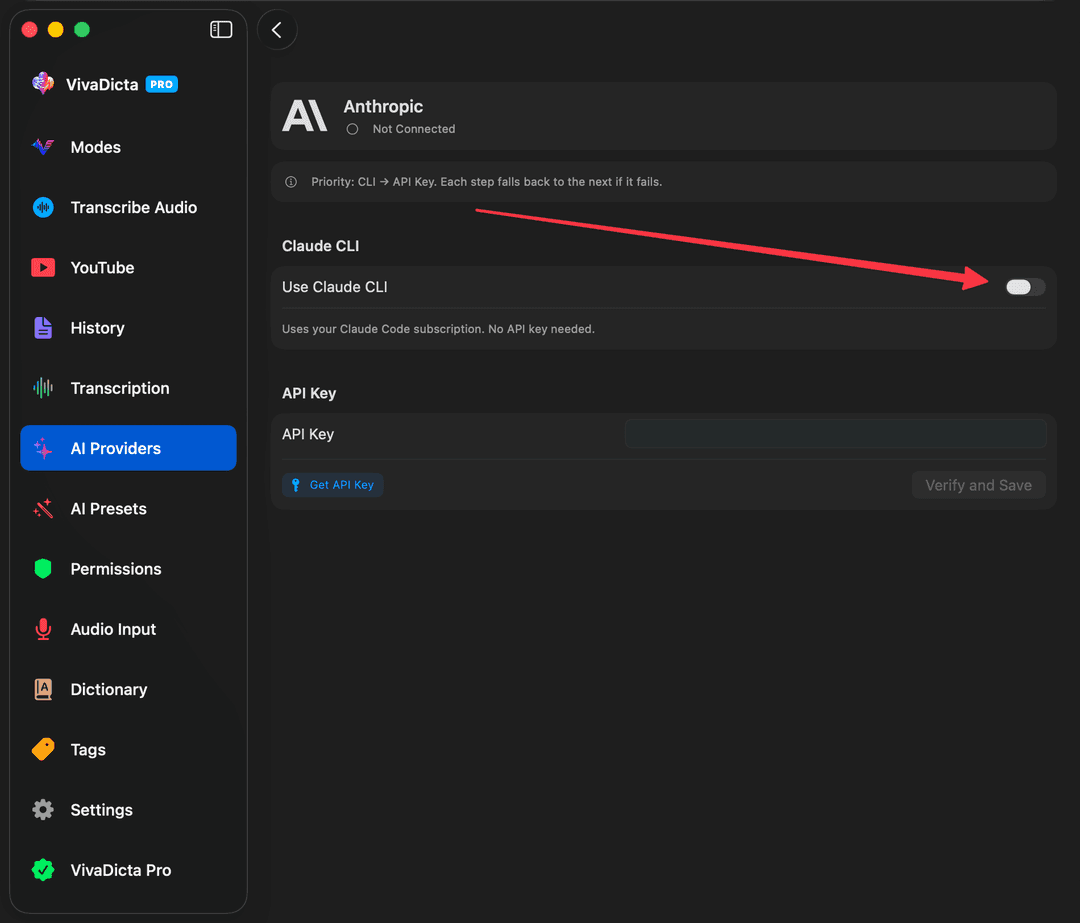
- Done! VivaDicta will now route AI processing through the local CLI agent for that provider.
You can mix methods per provider — for example, use Claude CLI for Anthropic but an API key for OpenAI. Each provider's settings are independent.
Sharing CLI Agents with iOS
The VivAgents Server is built into VivaDicta for Mac. You can share your local CLI agents with your iPhone or iPad over the network:
- In VivaDicta on your Mac, go to Settings → AI Providers.
- Enable the Share with iOS checkbox. VivaDicta starts a lightweight server and shows the server URL and auth token.
- On your iPhone/iPad, go to Settings → AI Providers → VivAgents Server, enter the URL and token, and tap Test & Save.
For detailed iOS setup, see the iOS VivAgents guide.
Connecting to a Remote VivAgents Server
You can also connect your Mac to a VivAgents server running on another machine — a VPS, a home server, or another Mac. This is useful when you want to centralize CLI agents on one machine and use them from multiple devices.
- In VivaDicta on your Mac, go to Settings → AI Providers.
- Enable the Connect to remote server checkbox.
- Enter the remote server's URL (e.g.
http://100.x.x.x:3456for Tailscale) and auth token. - Click Test & Save. VivaDicta verifies the connection and shows which CLI agents are available on the remote server.
When connected to a remote server, VivaDicta routes AI processing through it instead of local CLI agents. The remote server can run on macOS or Linux.
Running a Standalone VivAgents Server
For headless servers or Linux machines, VivAgents runs as a standalone Node.js server — no VivaDicta Mac app required. See the GitHub repo for full documentation.
1. Set up the server
- Install Node.js 18+ on your server:
curl -fsSL https://deb.nodesource.com/setup_22.x | sudo -E bash - sudo apt-get install -y nodejs - Install VivAgents:
npm install -g vivagents - Install and authenticate CLI agents (same as the local Mac steps above).
- Start the server:
Listens on portvivagents3456by default. The auth token is printed on first run.
2. Keep it running
# With pm2
npm install -g pm2
pm2 start vivagents --name vivagents
pm2 save
pm2 startup

# Or with systemd (create a service file)
# See VivAgents docs for the full systemd template
3. Connect securely
- Tailscale (recommended) — install Tailscale on both the server and your Mac/iPhone. Use the Tailscale IP as the server URL. Zero firewall config, encrypted, works from any network.
- Reverse proxy + HTTPS — put VivAgents behind nginx or Caddy with a domain and TLS certificate.
Fallback Chain
When multiple methods are configured for a provider, VivaDicta tries them in priority order:
- Anthropic: CLI Agent → API Key (Anthropic has no OAuth yet)
- OpenAI: ChatGPT OAuth → CLI Agent → API Key
- Gemini: Google OAuth → CLI Agent → API Key
If a CLI agent fails, VivaDicta automatically falls back to the next available method.
Note: CLI agents (Claude Code, Codex) are designed for software development use. Using them for general text processing may fall outside the intended use and could lead to account restrictions. By enabling this feature you proceed at your own risk.
Troubleshooting
- CLI agent not detected: Make sure the CLI is installed and authenticated. Run the CLI command directly in Terminal (e.g.
claude --version) to verify. - Remote connection fails: Verify both devices are on the same network or Tailscale. Check that the URL includes the port (e.g.
:3456). Ensure the auth token matches. - Agent shows “Not found” on remote: The CLI tool isn't installed on the remote server, or sharing is disabled.
- Requests fail intermittently over Tailscale: Large requests may time out on slower connections. Try again or switch to a local network.